
Weebly Vertical Tabs – Add Responsive Vertical Tabbed Layouts to Your Weebly Website
Organise page content into elegant vertical tab layouts — no coding required. Tab labels stack down the left side while content displays to the right. Drag and drop any Weebly element directly into each tab’s content area, and customise colours from the settings panel to match your site design.
Drag-and-Drop Tab Content | 7 Colour Design Options | Fully Responsive | Multiple Tabs Per Page | From codoplex.com
🗂️ Drag-and-Drop Tab Content
🎨 7 Colour Settings
📱 Fully Responsive
What Is the Weebly Vertical Tabs App?
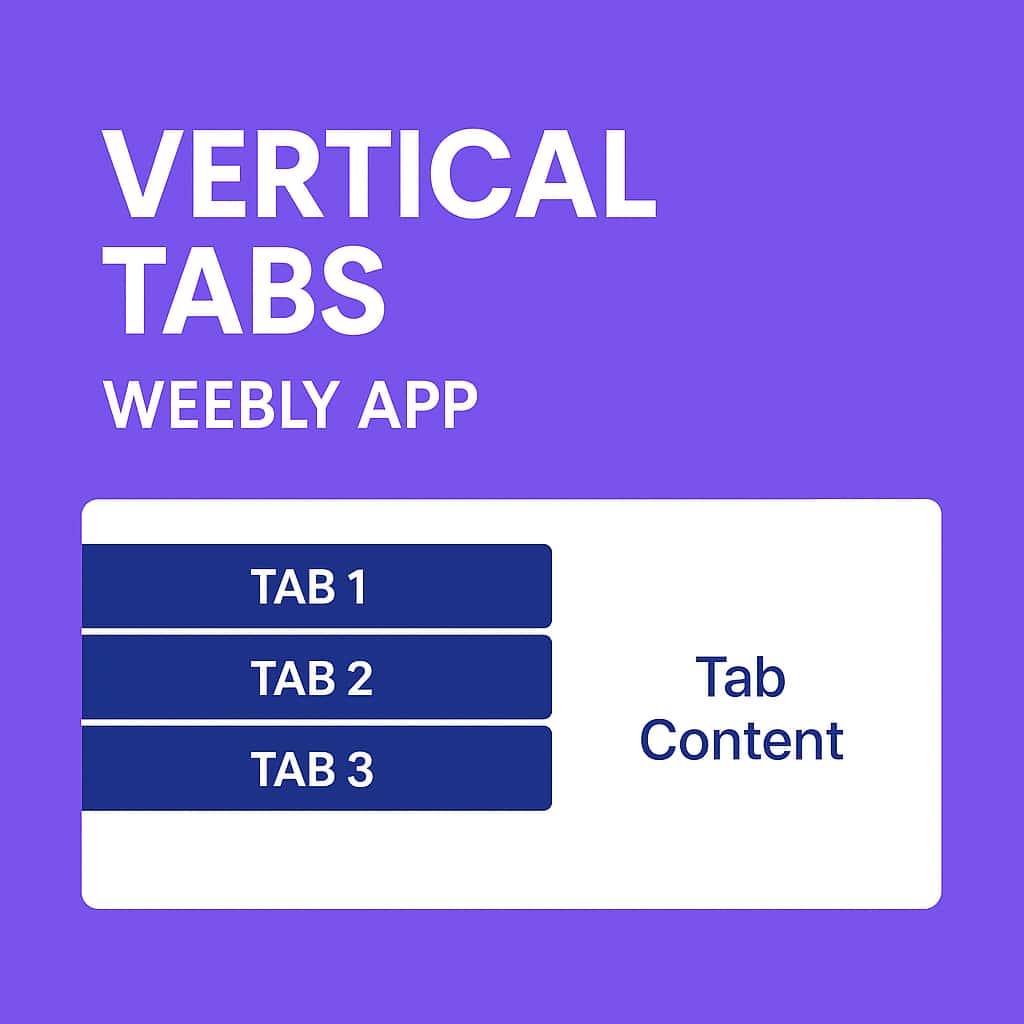
Vertical Tabs is a Weebly widget that creates responsive tabbed layouts with the tab labels arranged vertically down the left side and the active tab’s content displayed in a panel to the right. This side-by-side layout is ideal for pages with several content sections — product details, service breakdowns, FAQs, portfolios — where a vertical navigation column makes it easy for visitors to scan and jump to the section they need.
The standout feature is that each tab’s content area is a full drag-and-drop Weebly zone — meaning you can drop any standard Weebly element (text blocks, images, buttons, videos, columns, and more) directly into each tab’s content section, exactly as you would on any other part of your Weebly page. No HTML, no embed codes, no workarounds needed.
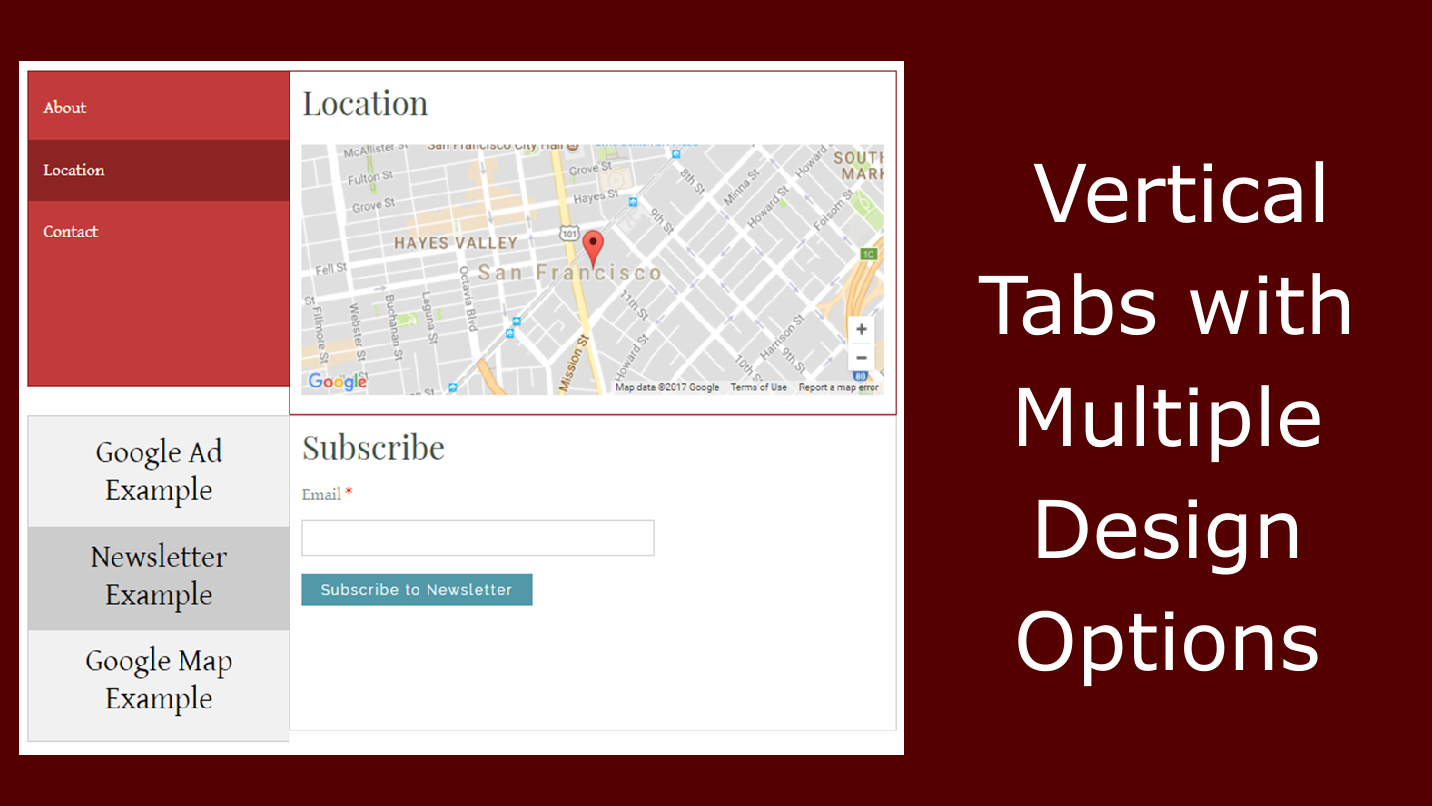
Colour customisation is handled through the settings panel, where seven separate colour properties can be independently adjusted: tab text, tab section border, tab background, active tab background, hovered tab background, content section border, and content section text colour. The widget is fully responsive and adjusts to the screen size of the visitor’s device.
Screenshots
Vertical Tabs in use on a Weebly page — vertical tab navigation, colour styling options, and drag-and-drop content sections.
What Can Go Inside a Vertical Tab?
Each tab’s content area is a full drag-and-drop Weebly zone — not a plain text field. This means each tab can hold any combination of standard Weebly elements, giving you the same content-building flexibility inside a vertical tab as you have on a regular page.
📝
Text & Rich Content
Add paragraphs, headings, formatted lists, and styled text blocks. Ideal for FAQ answers, product descriptions, service breakdowns, terms and conditions, or any written content that benefits from being divided into clearly labelled sections accessible from a persistent left-hand navigation column.
🖼️
Images & Media
Drop Weebly image elements directly into tab content areas. Use this for product photo galleries organised by category, portfolio work grouped by project type, or service images displayed under department or offering tabs — all accessible without any page reloads.
🔘
Buttons, Columns & More
Add Weebly buttons with call-to-action links, multi-column layouts, maps, contact forms, and other Weebly widgets. Since the content area is a native Weebly drop zone, any element that works on a regular page works inside a vertical tab — including third-party Weebly apps.
💡 How to add content to a vertical tab: In the Weebly editor, after placing the Vertical Tabs widget on your page, click into the content panel on the right side of the widget. The area becomes a drag-and-drop zone — use the Weebly element menu on the left to drag in text blocks, images, or other elements just as you would on any other section of the page. Click each tab label on the left to switch to that tab’s content area and populate it independently.
Design Options & Settings Panel
Vertical Tabs exposes seven separate colour settings, giving you granular control over every visual aspect of the widget — from the inactive tab labels through to the content panel’s border and text. Every colour can be independently set to match your brand palette without touching any code.
All colour settings are accessed by clicking the widget in the Weebly editor and opening the settings panel. Changes are applied immediately and preview in the editor before publishing. Three-state tab styling — default, hovered, and active — provides clear visual feedback so visitors always know which tab is currently selected.
The settings panel also includes a Unique ID field. This must be set to a different value for each Vertical Tabs widget placed on the same page, ensuring the tab switching logic operates correctly and independently for each widget instance. See the FAQ below for details.
⚙️ Settings Panel
- 🔤 Tab text colour
- 🟦 Tab section border colour
- 🎨 Tab background colour
- ✅ Active tab background colour
- 🖱️ Hovered tab background colour
- 📋 Content section border colour
- 📝 Content section text colour
- 🔑 Unique ID (required per widget instance)
Common Use Cases
Vertical tabs work especially well where visitors need to navigate between several distinct sections of content — the persistent left-side label column makes it immediately clear how many sections exist and which one is active.
📦
Product & Service Details
Present a product across tabs such as Description, Specifications, Shipping, and Reviews — with the labels always visible on the left so visitors can jump directly to what they need. The vertical layout suits information-dense product or service pages particularly well.
❓
Categorised FAQs
Group frequently asked questions by topic — Billing, Delivery, Returns, Technical — with each category as a vertical tab. The sidebar navigation makes it clear at a glance how topics are divided and lets visitors skip directly to the relevant section without scanning a long single-column list.
🗂️
Portfolios & Multi-Section Pages
Organise a portfolio by project type, a team page by department, or a restaurant menu by course — each as a separate vertical tab. The persistent label column keeps orientation clear even when content panels are long, making vertical tabs particularly effective for deep, text-rich sections.
Simple, Affordable Pricing
All features included in one plan. Use the widget as many times as needed across one Weebly website for a single annual fee.
All in One
$19.99/yr
- ✅ Responsive vertical tabs (all screen sizes)
- ✅ Drag-and-drop tab content areas
- ✅ 7 colour design settings
- ✅ Three-state tab styling (default, hover, active)
- ✅ Multiple widget instances per page (unique ID required)
- ✅ Works with all standard Weebly elements in tabs
Reviews
Vertical Tabs has a 3.7-star aggregate rating from 6 reviews on the Weebly App Center. We recommend evaluating the app through the live demo before purchasing. The FAQ below addresses the concerns raised in lower-rated reviews.
⭐⭐⭐⭐⭐
Breanna Dawn Richards Sep 28, 2021 · 5★
“I was having issues configuring multiple vertical tabs on one sheet and reached out via the email provided and had a response within a few minutes. Awesome support and very easy to use drag and drop feature. Best app purchase!”
⭐⭐⭐⭐⭐
Pedro Jul 18, 2021 · 5★
“Damit lässt sich eine gute Übersicht erstellen. Contents auf wenig Platz unterbringen – toll!” (Great way to create a good overview and fit a lot of content into a small space — brilliant!)
⭐⭐⭐⭐⭐
Kristie Farmer Jan 18, 2018 · 5★
“Easy to use app. The drag and drop feature work really well. It makes formatting easy. It even worked well with the added Huzzah app! Tech support is outstanding. I had a couple issues, turned out to be my browser — works great in Edge. Support was really, really quick and helpful (and nice).”
⭐⭐⭐⭐⭐
Mark Martel Nov 15, 2017 · 5★
“Very nice way to organize content in small space. Drag and drop, customize colors, easy to use.”
⭐
Rick Percoco Dec 8, 2017 · 1★
“Doesn’t work. Can’t change the names on the tabs.”
Developer reply (Dec 26, 2017): “We contacted you via email and your issue is resolved. So please update this review. Thanks”
ℹ️ Tab labels are editable directly in the Weebly editor — click any tab label and type to rename it. See FAQ Q5 for details.
⭐
Kara Alheim Dec 6, 2017 · 1★
“It will not let you put any build tools in the vertical banner so really it is useless. Don’t waste your money.”
Developer reply (Dec 26, 2017): “Can you please explain the problem you are facing. Just to elaborate that you can drag and drop any build tools/widgets in the content sections of vertical tabs. Let me know if you find difficulty in implementing this.”
ℹ️ Any standard Weebly element can be dragged into the tab content zone. See “What Can Go Inside a Vertical Tab?” above and FAQ Q2 for full details.
Frequently Asked Questions
Why do I need a Unique ID if I use Vertical Tabs more than once on the same page?
The Unique ID in the settings panel is how the widget’s JavaScript identifies which set of vertical tabs to control when a tab label is clicked. If two instances of the widget on the same page share the same ID, clicking a label in one widget may trigger the wrong widget or cause unexpected switching behaviour in both. The fix is straightforward: after placing a second Vertical Tabs widget, open its settings panel and change the ID field to a different value — for example “vtabs-1” and “vtabs-2”. Each widget will then operate independently. A reviewer noted this configuration challenge and found the issue resolved quickly via email support.
Can I really drag any Weebly element into a tab’s content area?
Yes. Each tab’s content section is a native Weebly drag-and-drop zone — identical in behaviour to any other content area on a Weebly page. You can drag in text blocks, headings, images, buttons, column layouts, maps, contact forms, videos, and other Weebly widgets. One early reviewer reported difficulty adding elements, but the developer confirmed that standard drag-and-drop works as expected; checking the live demo first is the best way to verify the behaviour before purchasing.
What is the difference between Vertical Tabs and horizontal tabs?
With horizontal tabs (such as Codo Tabs), the tab labels appear in a row across the top of the content area — clicking a label switches the panel below. With Vertical Tabs, the labels are stacked in a column down the left side and the active tab’s content appears to the right in a larger panel. The vertical layout is often preferred for pages with longer tab label text, a larger number of sections, or content-heavy panels where the persistent sidebar navigation helps users keep their bearings. Both layouts support the same drag-and-drop content approach.
How do Vertical Tabs behave on mobile devices?
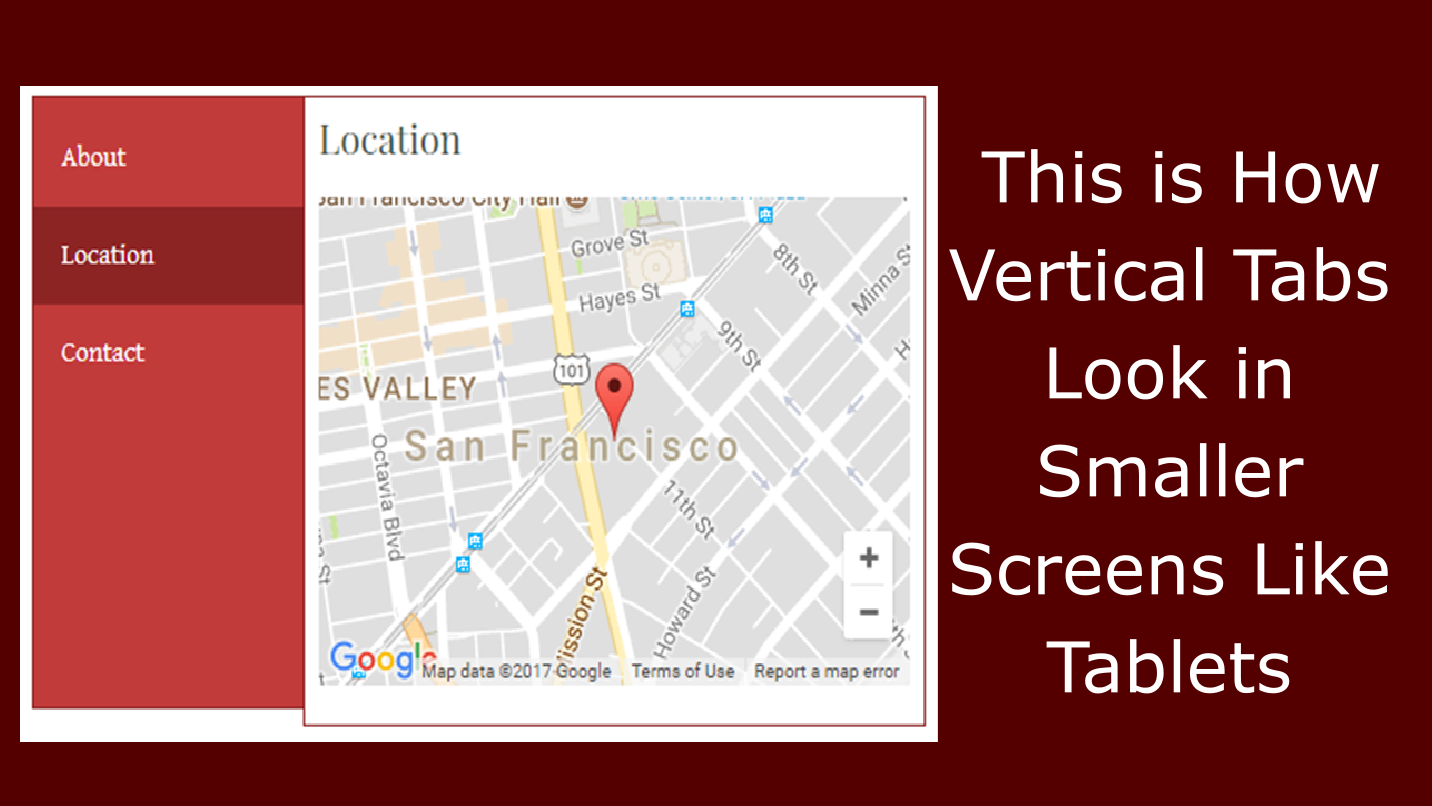
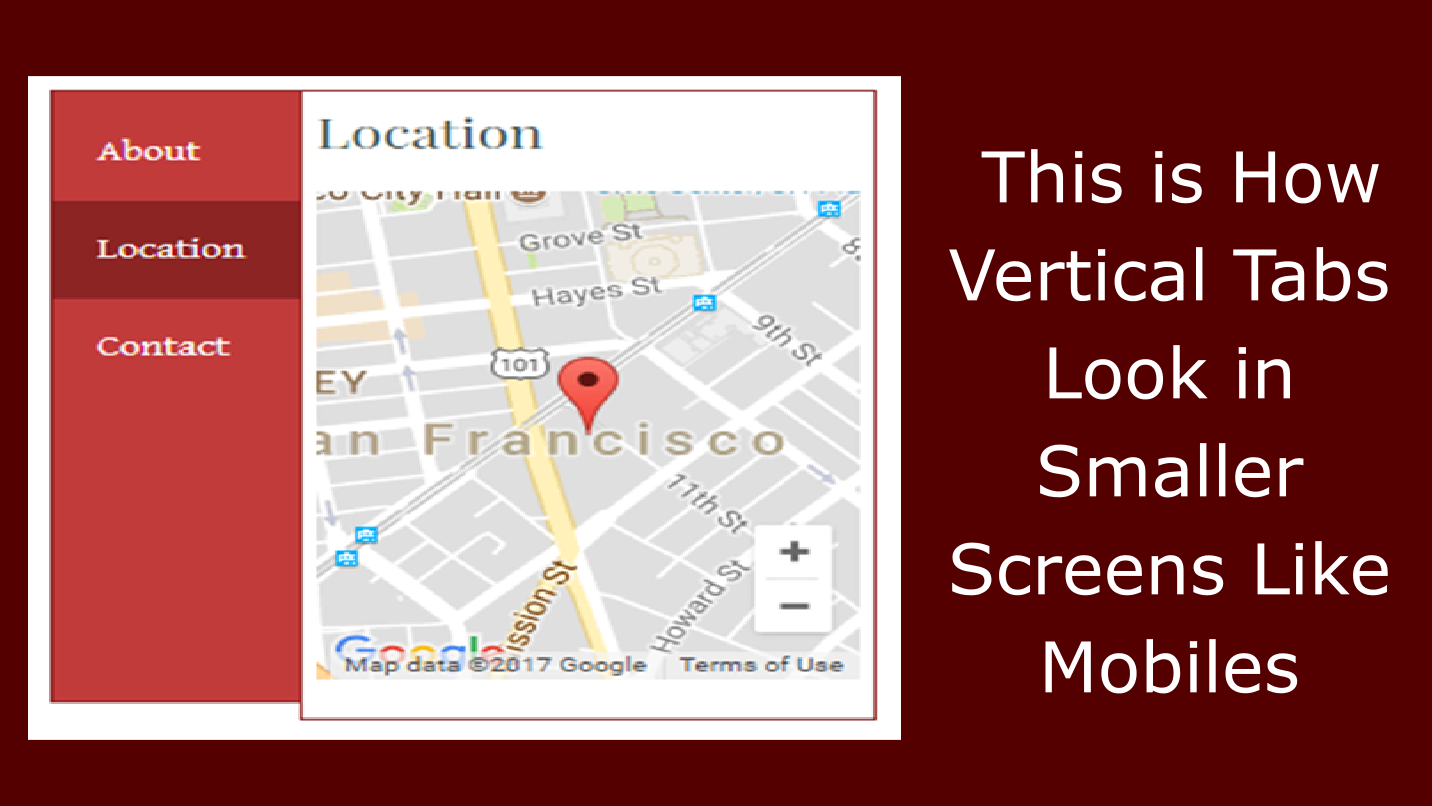
The widget is described as fully responsive and adjusts according to the screen size of the device. On narrow screens, the side-by-side vertical layout typically reflows so the tab labels stack horizontally across the top or remain as a compact column above the content area, depending on the number of tabs. The content-switching behaviour remains the same: tapping a label shows that tab’s content and hides the others. Use the live demo on a mobile device to verify the responsive layout before purchasing if mobile experience is critical for your use case.
Can I change the tab labels?
Yes. Tab labels are editable directly in the Weebly editor — click on a tab label in the widget and type your desired label text, just as you would edit any text element on a Weebly page. An early reviewer reported being unable to change tab names; the developer confirmed the issue was resolved via email. Shorter labels work best for readability, but the vertical layout accommodates longer label text more comfortably than a horizontal tab row.
What does the $19.99/yr plan include?
The All in One plan covers all features — responsive vertical tabs, drag-and-drop content areas, all seven color settings, three-state tab styling, and multiple widget instances per page — for $19.99 per year across one Weebly website. The plan renews annually. If the subscription lapses, the widget stops functioning on published pages until the plan is renewed. Support is available by email through codoplex.com.
Explore Our Other Weebly Apps
Organise Your Weebly Page Content with a Clean Vertical Navigation.
Vertical Tabs gives you a native drag-and-drop tab layout with a side-by-side navigation column on any Weebly page — no HTML, no embeds. Drop in your text, images, and Weebly elements, style the tabs with seven color controls, and let visitors navigate your content the way they want. Check the live demo first to see the widget in action, then add it to your site for $19.99 a year.