
Weebly Multi Column Blog – Display Your Blog Posts in 1, 2, or 3 Columns
Transform your Weebly blog from a single long list into a clean, modern multi-column grid. Choose simple or card-style layouts, set custom card colors and gap spacing, and give your blog the visual structure your readers deserve — no code required.
⭐⭐⭐ 15 verified reviews | Available on the Weebly App Center | From codoplex.com
✅ 1, 2 & 3 Column Blog Layouts
✅ Simple or Styled Card Mode
✅ Works with All Weebly Themes
What Is the Weebly Multi Column Blog App?
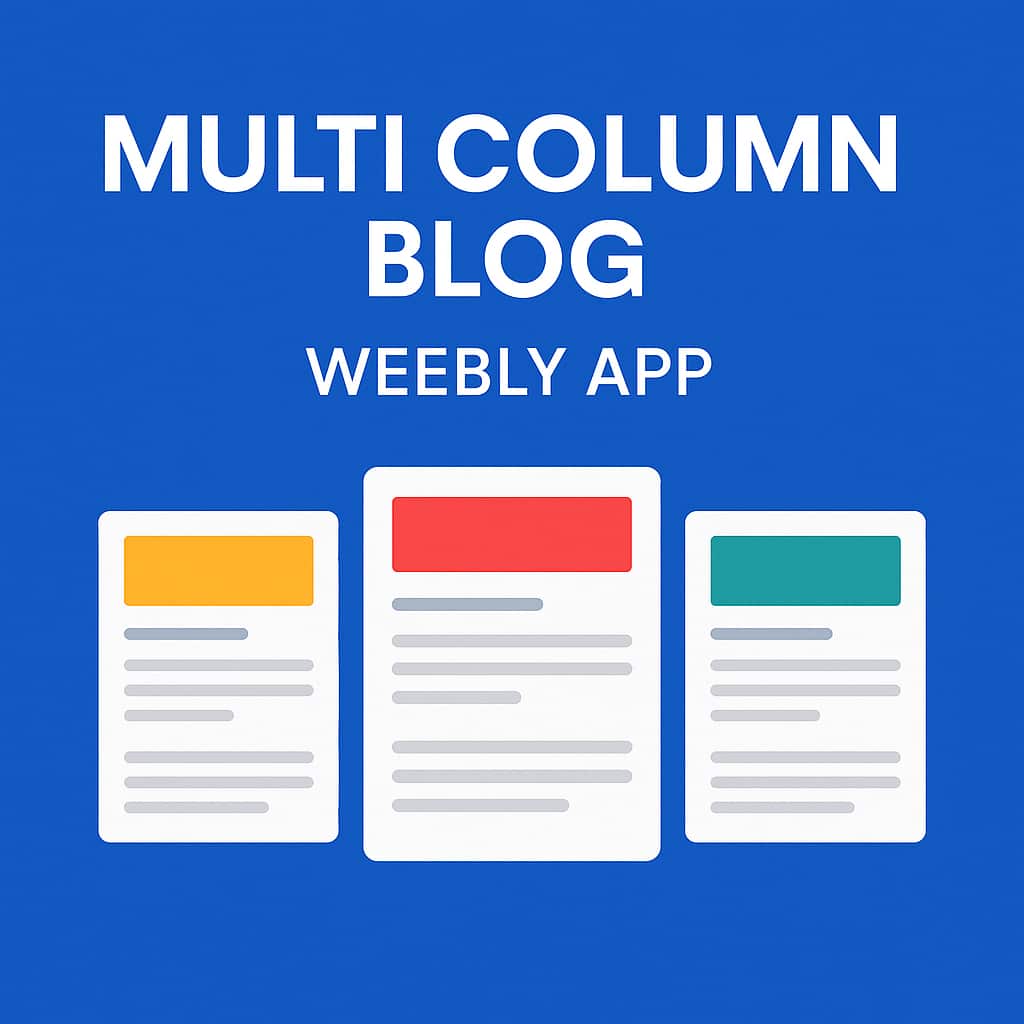
Weebly’s native blog displays posts in a single vertical list — which can feel long and hard to scan, especially on larger screens. The Weebly Multi Column Blog app converts that list into a 1-, 2-, or 3-column masonry grid, giving your blog the visual density and structure of a modern magazine layout.
Choose between a clean simple post style or a styled card layout with custom background, shadow, and border colors. An optional Expand Posts Area setting stretches the content area to use the full available page width — particularly useful for the 3-column view.
The app works by placing a widget in your Weebly blog’s sidebar — the multi-column layout is then rendered on your live published website and is compatible with both old and new Weebly themes.
See Multi Column Blog in Action
Watch the official demo and tutorial video from the app developer.
Who Is Multi Column Blog For?
Any Weebly site owner who wants their blog to look less like a scroll and more like a publication.
📰
Content-Heavy Blogs
Sites with many blog posts benefit most — more posts visible above the fold, easier browsing, and a more organized first impression for new visitors.
🏢
Professional & Business Sites
The styled card layout with shadow and border options gives any business blog a polished, publication-quality appearance that matches modern site design expectations.
👥
Community & Group Sites
Organizations like community groups, clubs, and nonprofits use multi-column layouts to keep news and updates visible at a glance — without members scrolling endlessly to find what’s new.
Full Control Over Your Blog Grid Layout
All settings are configured from the app’s panel inside the Weebly editor after dragging the widget into your blog’s sidebar:
- Number of Columns — display blog posts in 1, 2, or 3 columns
- Expand Posts Area — stretch the posts area to full available width (recommended for 3-column layouts)
- Blog Post Style — choose between simple (default) or card style with visual borders and background
- Custom Card Colors — set card background color, shadow color, and border color independently
- Card Gap — define a custom spacing value between blog post cards in the grid
Note: The updated multi-column layout is only visible on your live published website — it does not render inside the Weebly editor. Use the demo site to preview the result before publishing.
⚙️ Settings Panel
- 🏛️ Number of Columns: 1 / 2 / 3
- ↔️ Expand Posts Area
- 🗂️ Blog Post Style: Simple or Card
- 🎨 Card Background Color
- 🌑 Card Shadow Color
- 🔲 Card Border Color
- ↕️ Card Gap / Column Spacing
How to Set Up Multi Column Blog on Your Weebly Site
Five steps from install to a live multi-column blog. Watch the video above for a visual walkthrough.
01
Install the App
Visit the Weebly App Center and add Multi Column Blog to your account. You’ll find a new “Multi Column Blog” element in your Weebly editor drag-and-drop panel.
02
Open Your Blog Page
In the Weebly editor, go to Pages and select your existing Blog Page. The blog page must already exist in your Weebly site — the app converts an existing blog, it does not create a new one.
03
Drag Widget into Blog Sidebar
Important: drag the Multi Column Blog element into the blog sidebar area — not the main page body. This is where the app’s settings are connected to the blog post output.
04
Configure the Settings
Select number of columns, toggle Expand Posts Area, choose simple or card style, and set your card colors and gap spacing. For 3 columns, ensure you have at least 6 published blog posts to fully populate the grid.
05
Publish & View Live
Publish your website in Weebly and visit the live blog page in your browser. The multi-column layout renders on the published site — it is not visible inside the Weebly editor itself.
Simple, Affordable Pricing
Everything included. One annual fee. Unlimited use on one Weebly website.
Basic
$19.99/yr
- ✅ 1, 2 & 3 column blog layout
- ✅ Expand Posts Area option
- ✅ Simple or styled card mode
- ✅ Custom card background, shadow & border colors
- ✅ Custom card gap / column spacing
- ✅ Works with all Weebly themes
- ✅ Developer email support
What Weebly Users Say About Multi Column Blog
15 verified reviews on the Weebly App Center
⭐⭐⭐⭐⭐
“I gave this app a try and had great experience using it. The developer has been very helpful and responsive to all my inquiries. By the way, this app works with all the Themes available on Weebly, both old and new!”
Christine G. Juan · February 2019
⭐⭐⭐⭐⭐
“Fantastic! Very happy with how this plugin improved the display of our blog page. Multi column layout looks great and it was easy to add. Received prompt responses from the developer before we purchased.”
Cherissa Ducey-Kline · March 2018 · LAPD Family Support Group
⭐⭐⭐⭐
“Really like the Multi-column blog, works great for my site. I have a question: I want my most recent blogs to appear at the top — the developer explained that the masonry layout fills column by column, which is normal behaviour.”
Matt Willson · August 2018
Frequently Asked Questions
Does the app shorten my blog posts to show “Read More” previews?
No — the app handles the layout of your blog posts (columns, card style, colors, spacing), but it does not cut or truncate post content. If you want each column card to show just a brief excerpt with a “Read More” link, add Weebly’s native Read More element inside each individual blog post. This is how Weebly controls where post content is truncated on blog listing pages.
Why do my most recent posts appear at the top of the first column instead of left-to-right across all columns?
The app uses a masonry-style layout, which fills posts top-to-bottom down column 1 first, then column 2, then column 3 — rather than distributing posts left-to-right by date. This means your most recent posts appear at the top of the first (leftmost) column. If chronological left-to-right row ordering is essential for your use case, this is an important behaviour to know before purchasing.
I can’t see the multi-column layout in the Weebly editor — is something wrong?
This is expected behaviour. The multi-column layout only renders on your live published website — it is not visible inside the Weebly editor preview. After publishing, open your blog page in a regular browser tab to see the results. You can also compare against the live demo site to confirm the correct output.
Where exactly do I drag the Multi Column Blog element in the editor?
The widget must be placed in the blog sidebar area of your Weebly blog page — not the main page content area. On your blog page in the Weebly editor, you’ll see a distinct sidebar region alongside the blog posts area. Drag the Multi Column Blog element there, then configure settings from the element’s panel. The video tutorial above shows this step clearly.
How many blog posts do I need for the 3-column layout to work?
You need at least 6 published blog posts to properly populate a 3-column layout. With fewer posts, only 1 or 2 columns will appear. For a 2-column layout, 2 or more posts are sufficient. There is no minimum for 1-column mode.
What does the $19.99/yr plan include?
The Basic plan at $19.99 per year includes all column options (1, 2, or 3 columns), Expand Posts Area, simple and card post styles, custom card colors (background, shadow, border), card gap control, and developer email support. One annual fee, unlimited use on one Weebly website. It is compatible with all Weebly themes.
Explore Our Other Weebly Apps
Ready to Give Your Weebly Blog a Multi-Column Layout?
Stop making your readers scroll through a wall of posts. Turn your Weebly blog into a clean, modern multi-column grid with styled card layouts and custom colors — just $19.99/yr, unlimited use on one Weebly website.