
Weebly Image Overlay – Add Animated Hover Effects to Any Image on Your Website
Transform your static Weebly images into interactive hover experiences. Choose from five animated overlay effects — slide in from any direction or fade in — and fill the overlay area with text, buttons, icons, or another image. No coding required.
⭐⭐⭐ 17 verified reviews | 5 Hover Effects | Drag-and-Drop Overlay Area | From codoplex.com
✅ 5 Animated Hover Effects
✅ Drag-and-Drop Overlay Content
✅ Image-over-Image Support
What Is the Weebly Image Overlay App?
By default, Weebly images just sit on the page. When a visitor hovers over them, nothing happens. The Weebly Image Overlay app changes this by layering an animated overlay on top of any image, which appears when the user hovers their mouse over it. You choose the animation style — slide in from the top, bottom, left, or right, or a smooth fade-in — and fill the overlay with any Weebly content you like.
The overlay area is fully drag-and-drop — you can add text, headings, buttons, icons, or even another image inside it. A customisable background color controls the overlay’s fill, and an optional image-over-image mode lets you reveal a completely different photo when hovering, instead of text or content.
It’s the only image hover overlay widget available in the Weebly App Center, making it a unique option for adding interactivity and visual interest to image-heavy pages such as portfolios, galleries, team pages, and product showcases.

Screenshots
See Image Overlay in action across different effect styles and use cases.
The 5 Hover Effects Explained
Every effect is available in the settings panel. Choose the one that fits your design.
⬇️
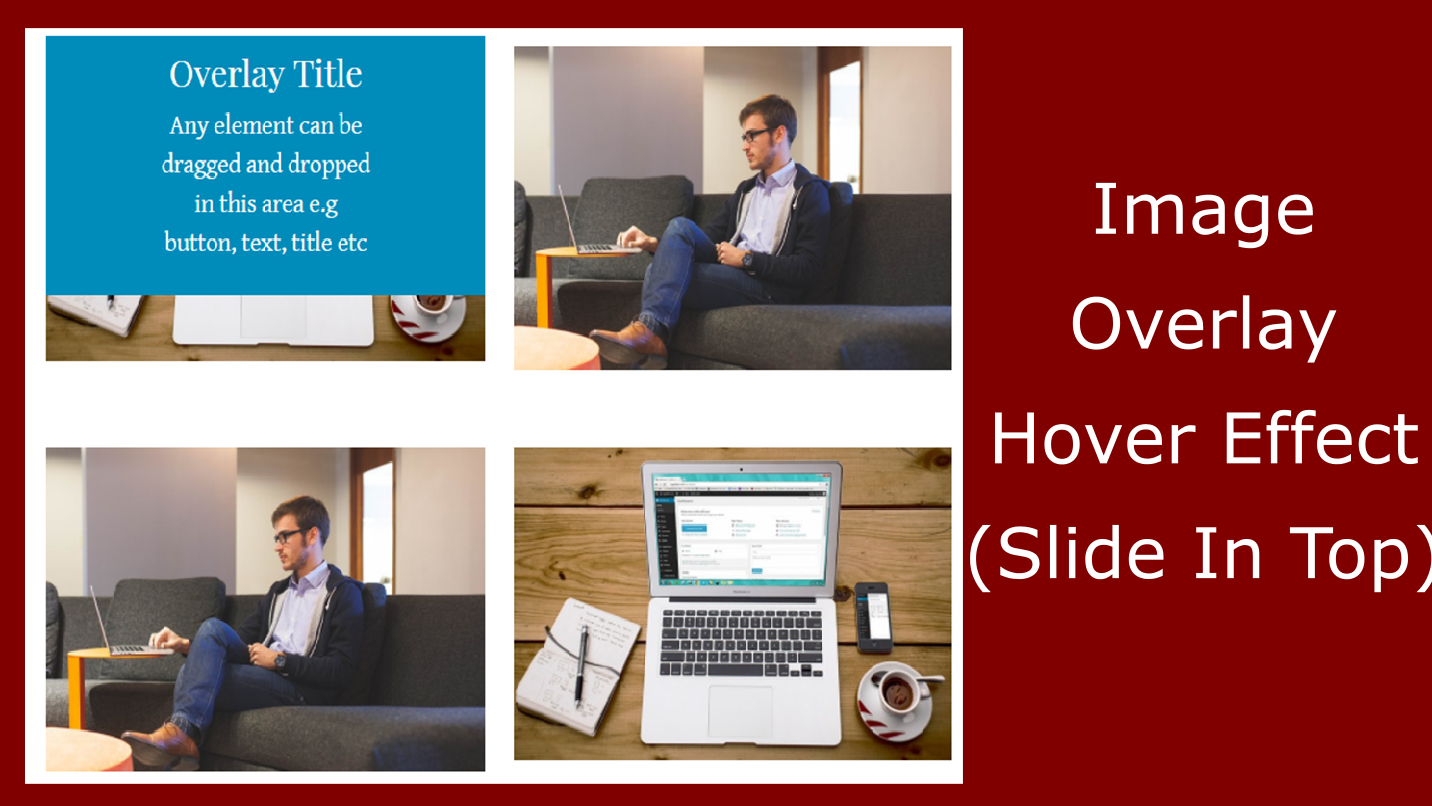
Slide In Top
The overlay slides in from the top of the image and fills downward on hover. The image-overlay-image option is not available with this transition — text and content only.
⬆️
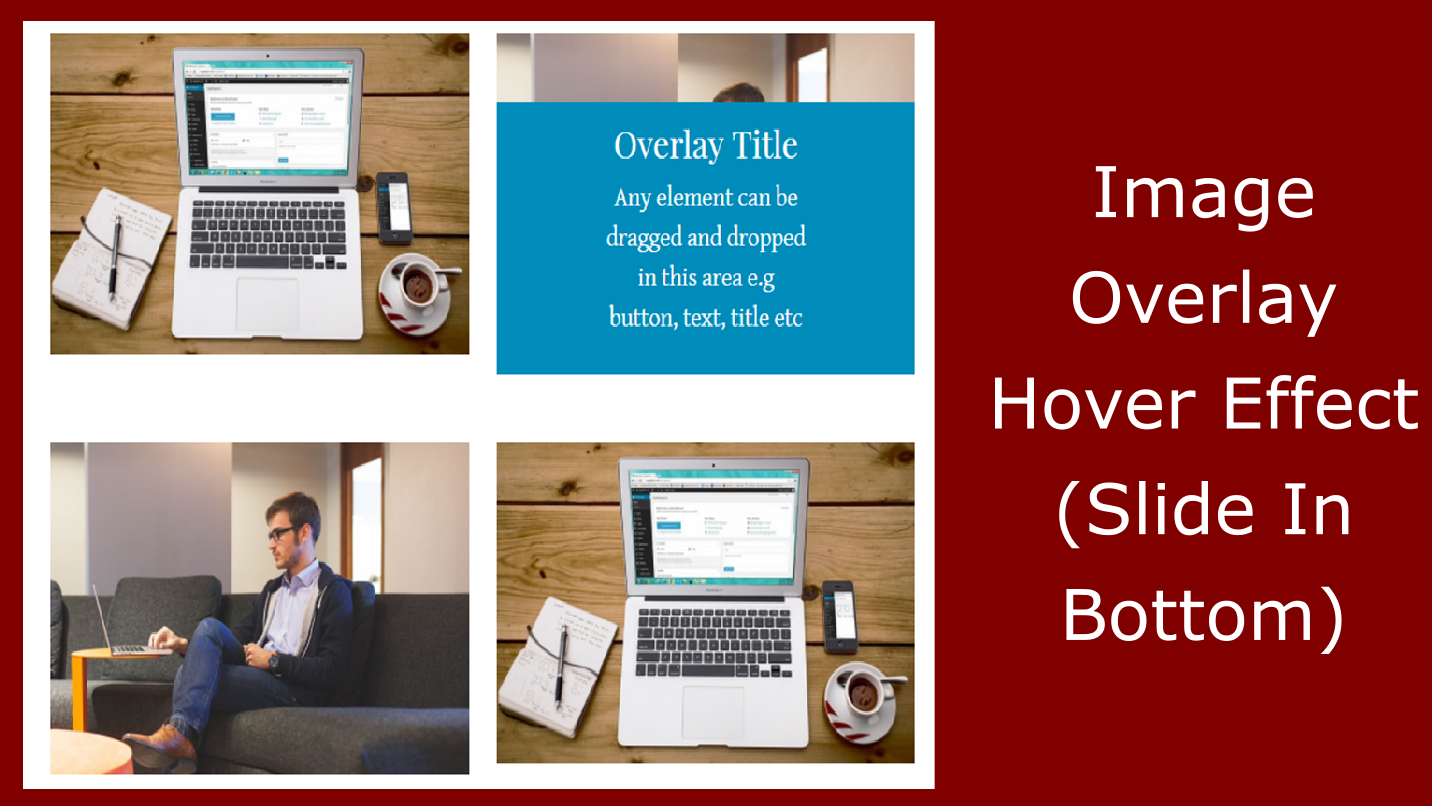
Slide In Bottom
The overlay rises up from the bottom edge of the image on hover. Image-over-image mode is supported with this transition — you can reveal a second photo sliding up.
➡️
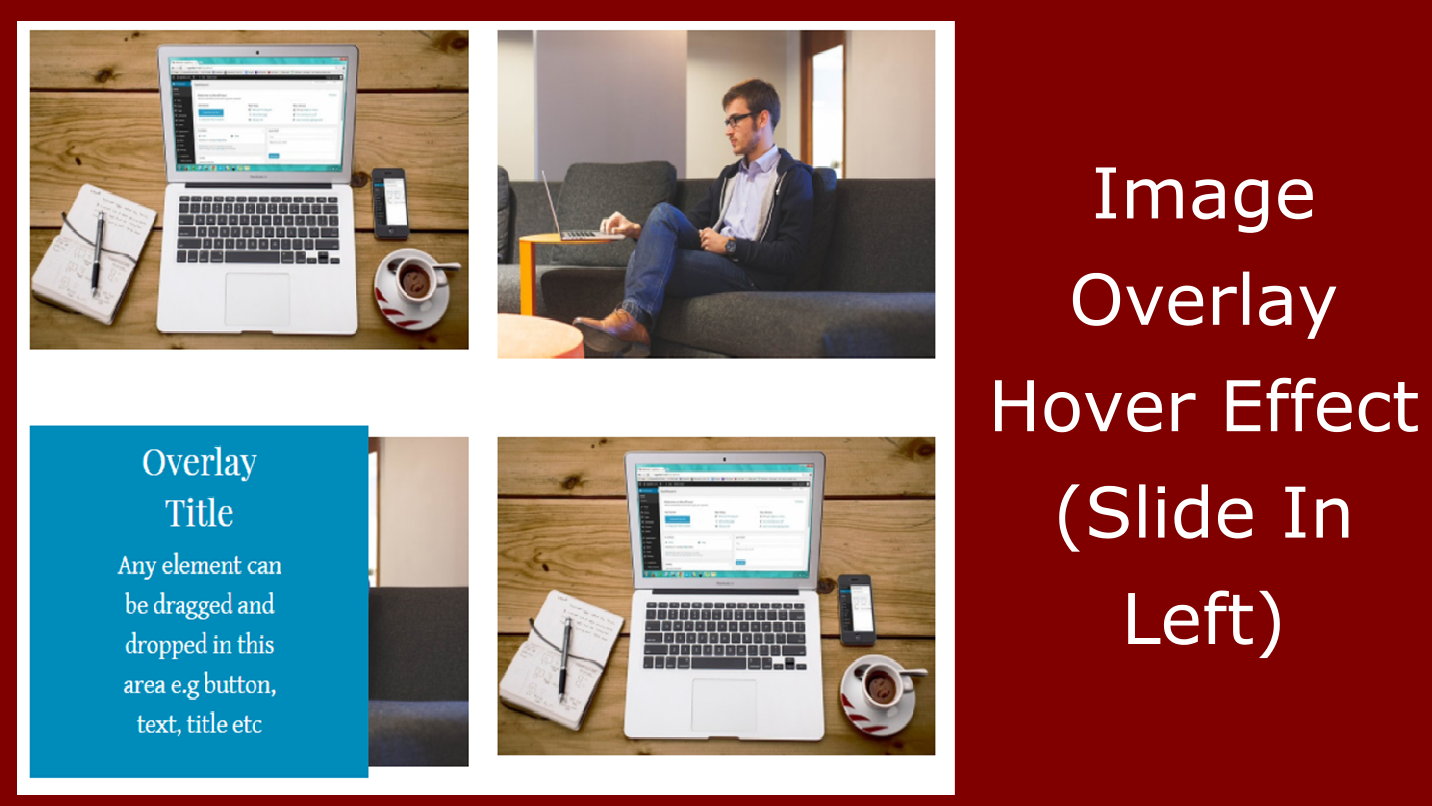
Slide In Left
The overlay sweeps in from the left side of the image on hover. Image-over-image mode is supported. Requires the underlying image to be left-aligned when using the image overlay option.
⬅️
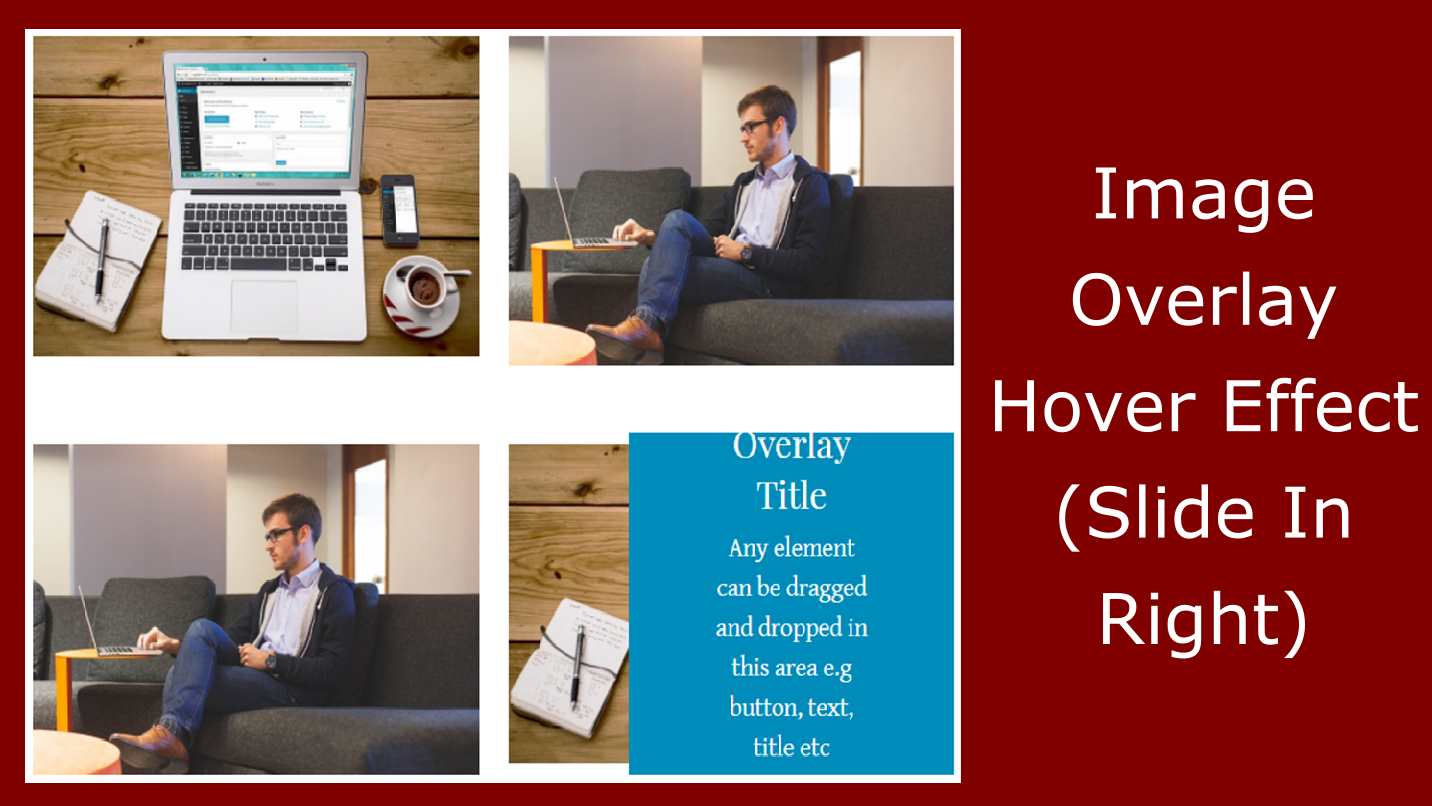
Slide In Right
The overlay enters from the right side of the image on hover. Image-over-image mode is supported. As with Slide In Left, the underlying image should be left-aligned when using the image overlay option.
✨
Fade In Text
The overlay content fades in gradually over the image on hover. Image-over-image mode is not available with this transition — this effect is designed for text and content overlays.
What’s in the Settings Panel
After dragging the Image Overlay widget onto your Weebly page, click it to open the settings panel. Every overlay behaviour is configured here:
- Hover Effect — choose from Slide In Top, Slide In Bottom, Slide In Left, Slide In Right, or Fade In Text
- Overlay Background Color — set the fill color of the overlay panel that appears on hover
- Image as Overlay Image — enable this to place an image in the overlay area that fully covers the base image; requires the underlying image to be left-aligned, and only works with Slide In Bottom, Slide In Left, and Slide In Right
- Full Width Image — enable alongside “Image as Overlay Image” to eliminate any visible border around the overlay; recommended when using the image-over-image feature
- Drag-and-Drop Content Area — the overlay area accepts any Weebly element: text, headings, buttons, images, or icons
Important: Applying an overlay to an image removes any existing click-link functionality from that image. Hover effects and click-link navigation cannot be active on the same image at the same time. See the FAQ for the full details on this and other key constraints.
⚙️ Settings Panel
- 🎭 Hover Effect (5 options)
- 🎨 Overlay Background Color
- 🖼️ Image as Overlay Image (toggle)
- ↔️ Full Width Image (toggle)
- 📦 Drag-and-Drop Overlay Content Area
Who Uses Image Overlay?
Any Weebly site that relies heavily on images to communicate — and wants those images to do more than just sit there.
📸
Portfolios & Creatives
Photographers, designers, and artists can reveal project titles, descriptions, or client names as overlay text when visitors hover over portfolio images — adding context without cluttering the layout.
👥
Team & Staff Pages
Display team member photos cleanly without text below them, then reveal each person’s name, job title, and role on hover — creating a sleek, minimal team grid that’s interactive and engaging.
🛒
Product & Service Showcases
Businesses can show a product image at rest and reveal a “View Details” button or price callout on hover, drawing visitors in without requiring extra page space for descriptive text next to every image.
Simple, Affordable Pricing
All features included in a single plan. One annual fee covers unlimited use on one Weebly website.
All in One
$19.99/yr
- ✅ All 5 hover animation effects
- ✅ Drag-and-drop overlay content area
- ✅ Custom overlay background color
- ✅ Image-over-image overlay mode
- ✅ Full Width Image option
- ✅ Works with all Weebly themes
- ✅ Developer email support
What Weebly Users Say About Image Overlay
Selected from 17 verified reviews on the Weebly App Center
⭐⭐⭐⭐⭐
“Works perfectly! I was able to add an image reveal and Junaid even helped me customize it quickly and efficiently! Great response and fast turn-around!”
AultCare · January 2019
⭐⭐⭐⭐⭐
“Great support and easy to use!“
Blue Beckham · August 2019
⭐⭐⭐⭐
“Great app and excellent customer support when needed.“
Matthew Parker · April 2019
Frequently Asked Questions
The overlay is removing the click-link I had set on my image — is this a bug?
No — this is a confirmed design constraint, not a bug. The Image Overlay widget intercepts mouse hover events on the image, which makes it technically impossible to also support a click-link on the same image element. Hover functionality and click-link navigation are mutually exclusive when an overlay is applied. If you need your image to link to another page, you cannot also add an Image Overlay effect to it. Consider adding a button or link element inside the overlay’s drag-and-drop area instead, which achieves a similar result.
Which transitions support the image-over-image (Image as Overlay Image) feature?
The image overlay feature — which replaces the hover content with a second image that fully covers the base image — only works with three of the five transitions: Slide In Left, Slide In Right, and Slide In Bottom. It does not work with Slide In Top or Fade In Text. If you enable “Image as Overlay Image” while using an incompatible transition, the result will not display correctly. Additionally, the underlying base image must be left-aligned in your Weebly layout for the overlay image to position and display properly. Enable the “Full Width Image” setting at the same time to eliminate any border artefacts.
What content can I put in the overlay area?
The overlay content area is a standard Weebly drag-and-drop zone, which means any Weebly element can be placed inside it — text blocks, headings, buttons, icons, images, and more. Style them as you normally would in the Weebly editor. The overlay background color (set in the settings panel) forms the backdrop behind your content. Keep in mind the overlay dimensions are tied to the base image size, so design your content to fit within those proportions.
Do I need to know CSS to use Image Overlay?
No CSS knowledge is required for any of the features documented in the app description and shown on the demo site. The five effects, overlay background color, image-over-image mode, and full-width image option are all controlled through the settings panel. CSS may be useful if you need to customise the overlay beyond what the settings offer — for example, adjusting overlay size, adding transparency effects, or fine-tuning typography — but these go beyond the app’s core documented functionality.
How do I contact support if I have trouble?
Support is available via the developer’s contact form at codoplex.com/contact. If you try to email the developer directly but the email address shown on the Weebly App Center listing doesn’t work, the contact form on codoplex.com is the correct route. The developer typically responds quickly and has helped multiple users resolve configuration issues and achieve custom results.
What does the $19.99/yr plan include?
The All in One plan includes all five hover effects, the drag-and-drop overlay area, custom overlay background color, image-over-image mode, full-width image option, and developer support. The fee is annual and covers unlimited use on one Weebly website. According to the listing description, the app fee is for the unlimited use of the app on a single Weebly site.
Explore Our Other Weebly Apps
Ready to Make Your Weebly Images Interactive?
Static images are a missed opportunity. With the Weebly Image Overlay app, every hover becomes a reveal — showing your visitors exactly what you want them to see, at exactly the right moment. Add it to your portfolio, team page, or product gallery.