
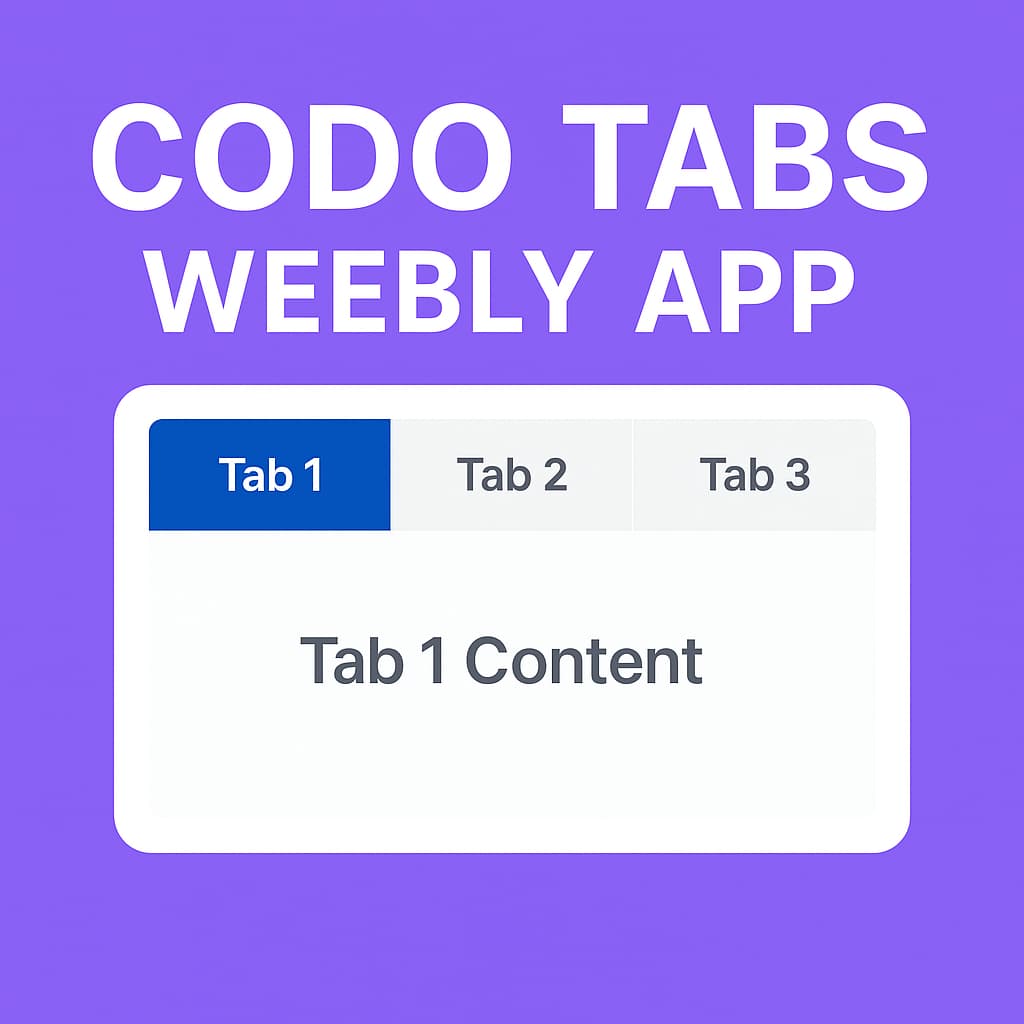
Weebly Codo Tabs – Add Responsive Tabbed Content to Your Weebly Website
Organise page content into clean, responsive tabs without needing to code. Drag and drop any Weebly element — text, images, buttons, and more — directly into each tab’s content area, and customise tab colours to match your site design from the settings panel.
Drag-and-Drop Tab Content | 7 Colour Design Options | Fully Responsive | Multiple Tabs Per Page | From codoplex.com
🗂️ Drag-and-Drop Tab Content
🎨 7 Colour Settings
📱 Fully Responsive
What Is the Weebly Codo Tabs App?
Codo Tabs is a Weebly widget that lets you create responsive tabbed layouts — the kind where clicking a tab label switches the visible content panel below it. Tabs are a standard pattern for organising dense page content (FAQs, product specs, service tiers, portfolio categories) in a compact, user-friendly way without requiring visitors to scroll through everything at once.
The key feature that sets Codo Tabs apart is that each tab’s content area is drag-and-drop enabled — meaning you can drop any standard Weebly element (text blocks, images, buttons, videos, columns, and more) directly into the content section of each tab, exactly as you would on a regular Weebly page. There is no need to write HTML or paste embed codes to populate tab content.
Colour customisation is handled through the settings panel, where seven separate colour properties can be adjusted: tab text, tab border, tab background, active tab background, hovered tab background, content section border, and content section text. The widget is responsive — tabs adjust automatically to the screen width of the device.
Screenshots
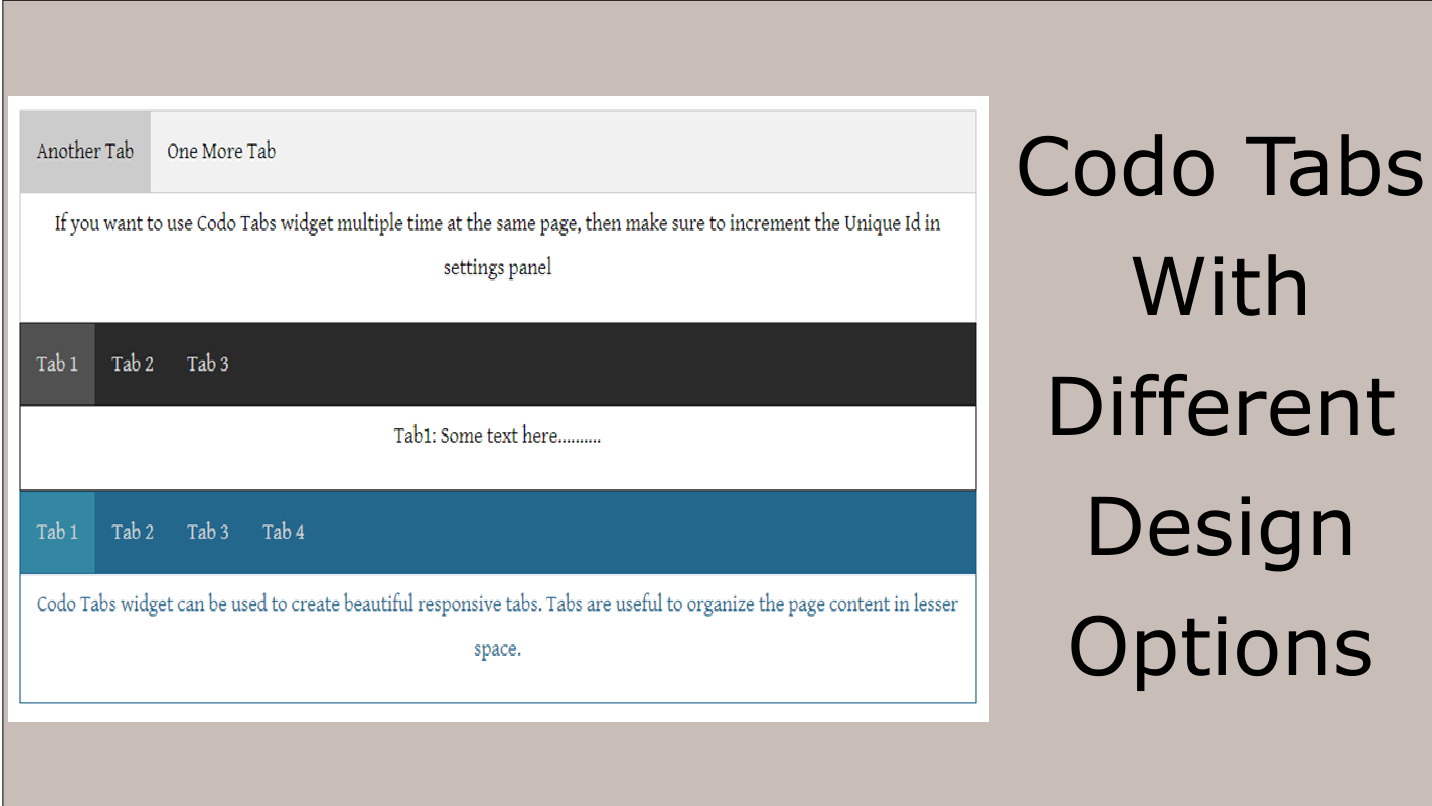
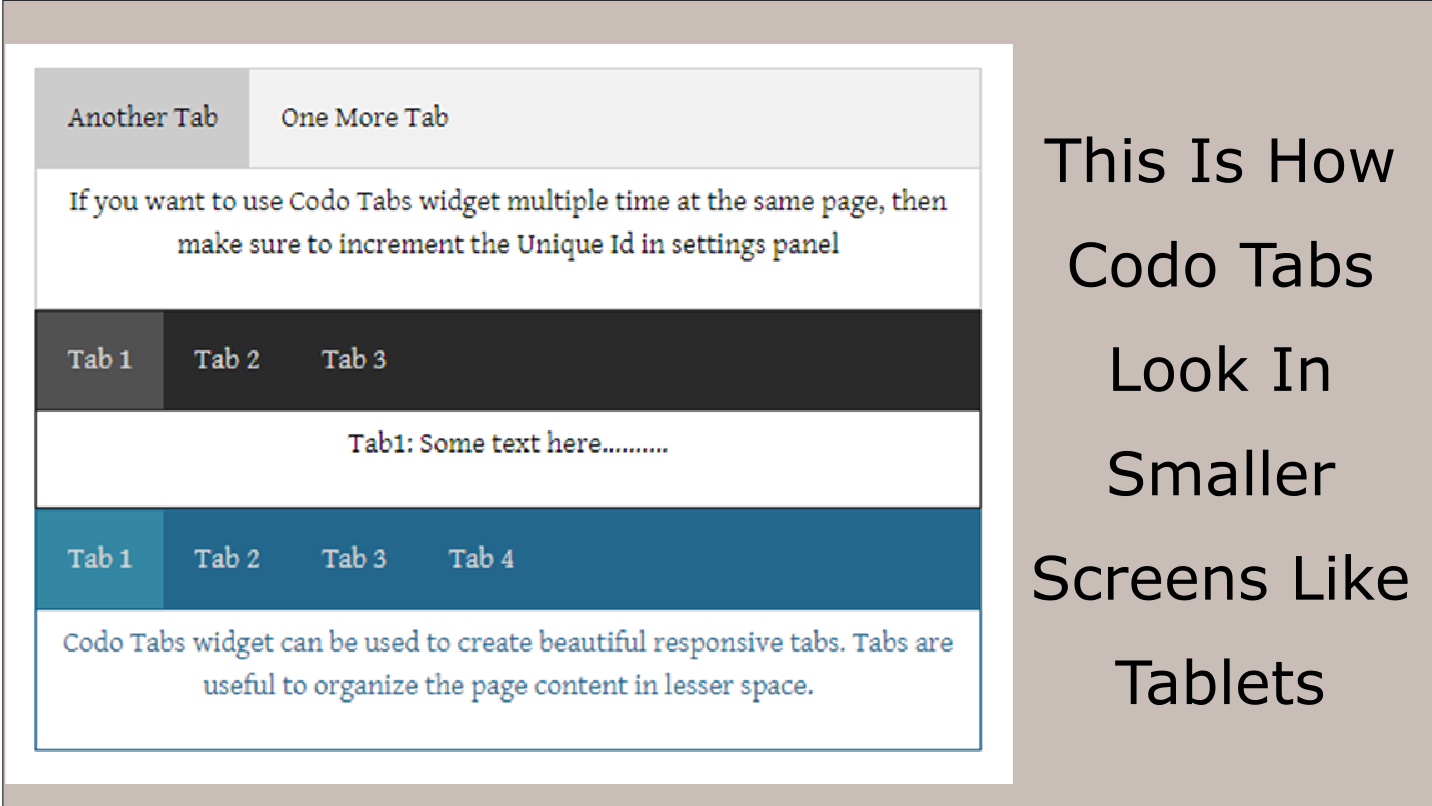
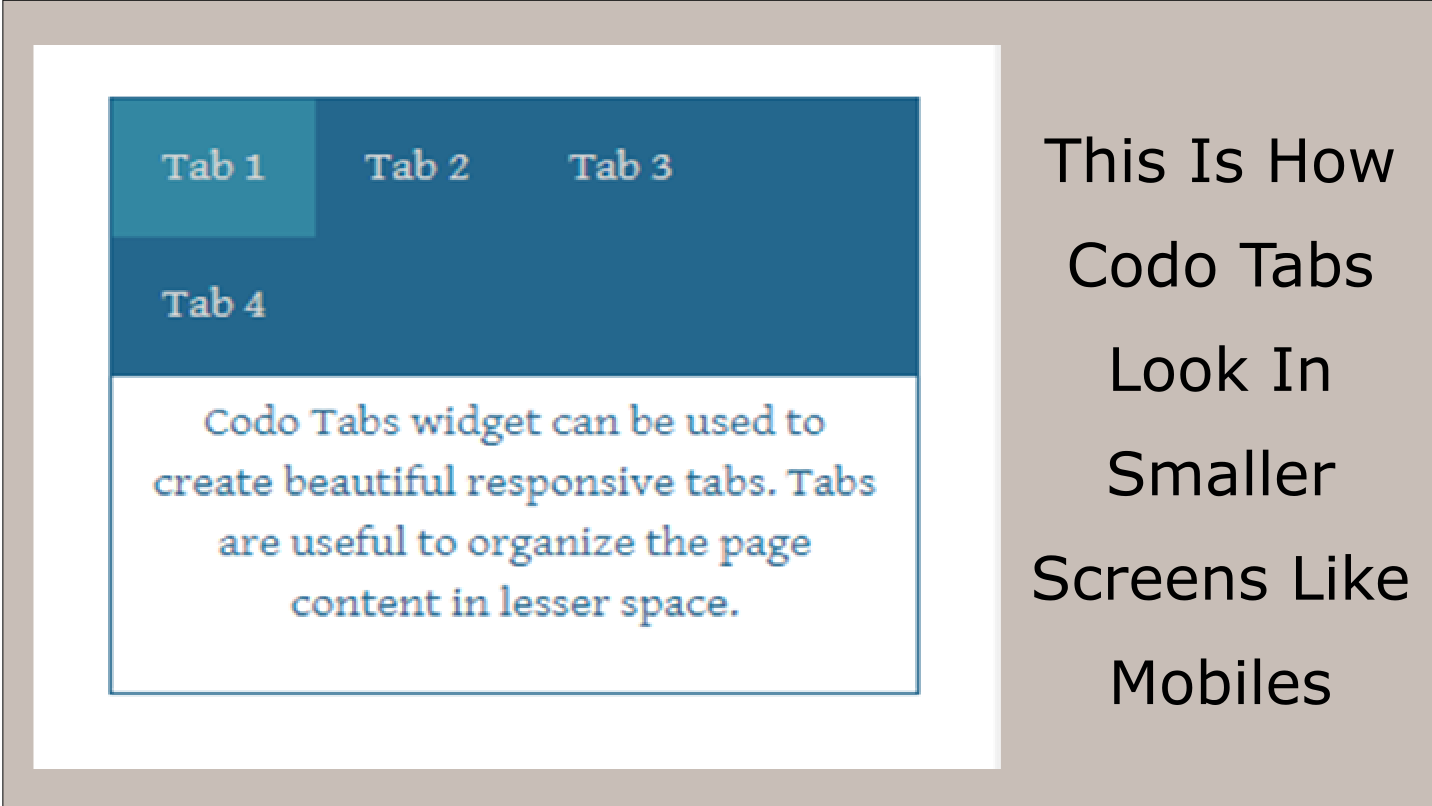
Codo Tabs in use on a Weebly page — tab layouts, colour styling options, and drag-and-drop content sections.
What Can Go Inside a Tab?
The tab content area is a full drag-and-drop Weebly zone — not a plain text field. This means each tab can hold any combination of standard Weebly elements, giving you the same content-building flexibility inside a tab as you have on a regular page.
📝
Text & Rich Content
Add paragraphs, headings, formatted lists, and styled text blocks. Ideal for FAQ answers, product descriptions, terms and conditions, or any written content that benefits from being divided into named sections.
🖼️
Images & Media
Drop Weebly image elements directly into tab content. Use this for product photo galleries organised by category, portfolio work grouped by project type, or team photos displayed under department tabs.
🔘
Buttons, Columns & More
Add Weebly buttons with call-to-action links, multi-column layouts, maps, contact forms, and other Weebly widgets. Since the content area is a native Weebly drop zone, any element that works on a page works inside a tab.
💡 How to add content to a tab: In the Weebly editor, after placing the Codo Tabs widget on your page, click into the content area below the tab labels. The area becomes a drag-and-drop zone — use the Weebly element menu on the left to drag in text blocks, images, or other elements just as you would on any other section of the page. Repeat for each tab by clicking each tab label to switch to that tab’s content area.
Design Options & Settings Panel
Codo Tabs exposes seven separate colour settings — more granular colour control than most Weebly tab solutions. Every visual aspect of the tab component can be independently styled to match your brand palette, from the inactive tab labels through to the content area border and text.
All colour settings are accessed by clicking the widget in the Weebly editor and opening the settings panel. Changes are applied immediately and preview in the editor before publishing. The three-state tab styling — default, hovered, and active — allows for clear visual feedback that guides visitors to understand which tab is currently selected.
The settings panel also includes a Unique ID field. This must be set to a different value for each Codo Tabs widget placed on the same page. This ensures the tab switching logic operates correctly and independently for each widget instance. See the FAQ for details.
⚙️ Settings Panel
- 🔤 Tab text colour
- 🟦 Tab section border colour
- 🎨 Tab background colour
- ✅ Active tab background colour
- 🖱️ Hovered tab background colour
- 📋 Content section border colour
- 📝 Content section text colour
- 🔑 Unique ID (required per widget instance)
Common Use Cases
Tabs work best where the same visitor needs access to distinct categories of content without having to scroll through them all — or where the page would feel overwhelming presented linearly.
📦
Product & Service Details
Split a product page into Description, Specifications, Shipping, and Reviews tabs. Each tab holds the relevant content without forcing the visitor to scroll past information they don’t need. Works equally well for service packages or membership tiers.
❓
Categorised FAQs
Group frequently asked questions by topic — Billing, Delivery, Returns, Technical — with each category as a tab. Visitors navigate directly to the tab covering their question rather than scanning a long single list. Reduces page length and friction at the same time.
🗂️
Portfolio & Multi-Topic Pages
Organise a portfolio by project type, a restaurant menu by course, or a team page by department — each as a separate tab. Keeps a single page focused while still surfacing all content. Useful anywhere you have parallel categories that don’t need to be shown simultaneously.
Simple, Affordable Pricing
All features included in one plan. Use the widget as many times as needed across one Weebly website for a single annual fee.
All in One
$9.99/yr
- ✅ Responsive tabs (all screen sizes)
- ✅ Drag-and-drop tab content areas
- ✅ 7 colour design settings
- ✅ Three-state tab styling (default, hover, active)
- ✅ Multiple widget instances per page (unique ID required)
- ✅ Works with all standard Weebly elements in tabs
Reviews
Codo Tabs has one review on the Weebly App Center — shown below in full. The listing does not display an aggregate rating as the review count is below the minimum threshold. We recommend evaluating the app through the live demo before purchasing. The FAQ below addresses the concern raised in this review.
⭐
Michael J. Hanousek Feb 23, 2020 · 1★
“I had this app for about two years, it stopped working and wanted $9.99 again to use. I contacted support but kept getting different things to try, nothing made it work. After hours of back and forth, I gave up. So decided to try a different App. Not Worth any more Time. Mike H”
Developer reply (Jan 30, 2022): “Please contact the developer by email, and the issue will be resolved (if any).”
ℹ️ This review describes the app stopping after approximately two years of use. See FAQ Q1 for context on annual subscription renewals and what causes a Weebly app widget to stop displaying.
Frequently Asked Questions
The review mentions the app stopped working after two years — does the app expire?
The Codo Tabs plan is billed annually at $9.99 per year. When the subscription lapses — either because auto-renewal fails, a card expires, or the renewal is not made — the app’s functionality stops working on the site. The widget will typically become non-functional or disappear from the published page until the subscription is renewed. This is standard behaviour for paid Weebly App Center apps that operate on annual billing. The experience described in the review — the app working fine for about two years then stopping and requiring another $9.99 payment — is consistent with a subscription lapsing at renewal rather than a technical fault. If you encounter this, renewing the plan through the Weebly App Center restores the widget. The developer’s reply suggests direct email contact is also an option for billing or access issues.
Why do I need a unique ID if I use Codo Tabs more than once on the same page?
The Unique ID in the settings panel is how the widget’s JavaScript identifies which set of tabs to control when a tab label is clicked. If two instances of Codo Tabs on the same page share the same ID, clicking a tab in one widget may trigger the wrong widget or cause unexpected switching behaviour in both. The fix is simple: after placing a second Codo Tabs widget, open its settings panel and change the ID field to a different value from the first instance. Use any alphanumeric label — for example “tabs-1” and “tabs-2” — and each widget will operate independently. This is the same requirement as the developer’s other widgets (Progress Bar, for instance) that use ID-based JavaScript.
How many tabs can I create in one Codo Tabs widget?
The listing does not specify a maximum tab count. In practice, Weebly tab widgets of this kind support as many tabs as you need — though usability tends to decline beyond five or six tabs as the labels become cramped, especially on mobile. If you need a large number of sections, consider whether multiple Codo Tabs widgets (each with a distinct unique ID) placed sequentially on the page, or an accordion-style layout, might serve better. Use the live demo site to evaluate the responsive behaviour with your intended number of tabs before committing.
How do the tabs behave on mobile devices?
Codo Tabs is described as fully responsive — the widget adjusts according to the screen size of the device. On smaller screens, the tab row typically wraps or stacks the labels to fit the available width rather than overflowing horizontally. The content switching behaviour remains the same: tapping a tab label shows that tab’s content and hides the others. The exact mobile layout depends on the number of tabs and their label lengths, so it is worth checking the demo on a mobile device if mobile experience is important to your use case.
Can I change the tab labels themselves?
Yes. Tab labels are editable directly in the Weebly editor — click on a tab label in the widget and type your desired label text, just as you would edit any text element on a Weebly page. The listing does not specify a character limit for tab labels, but shorter labels (one to three words) work best for readability at all screen sizes.
What does the $9.99/yr plan include?
The All in One plan covers all features — responsive tabs, drag-and-drop content areas, all seven colour settings, and unlimited widget usage across one Weebly website — for $9.99 per year. The plan renews annually. If the subscription lapses, the widget stops functioning on published pages until the plan is renewed. Support is available by email through codoplex.com.
Explore Our Other Weebly Apps
Organise Your Weebly Page Content Without the Scroll.
Codo Tabs gives you a native drag-and-drop tabbed layout on any Weebly page — no HTML, no embeds. Drop in your text, images, and Weebly elements, style the tabs with seven colour controls, and let visitors navigate your content the way they want. Check the live demo first to see the widget in action, then add it to your site for $9.99 a year.