
Weebly Progress Bar – Add Animated Skill and Progress Bars to Your Weebly Website
Display animated progress bars to showcase skills, task completion, or side-by-side attribute comparisons on any Weebly page. Set the percentage, height, bar colour, background colour, and border radius — all from the settings panel with no coding required.
Animated on Page Load | Custom Colours & Border Radius | Fully Responsive | Skill, Task & Comparison Bars | From codoplex.com
📊 Animated on Page Load
🎨 Custom Colours & Border Radius
📱 100% Responsive Design
What Is the Weebly Progress Bar App?
The Weebly Progress Bar app adds animated, horizontally filling progress bars to any Weebly page, post, or product. Each bar displays a percentage value that fills in from left to right on page load, giving visitors a visual representation of a skill level, project completion percentage, or any comparative attribute measured on a 0–100% scale.
The design is controlled through the settings panel: set the percentage (e.g. 75%), the bar’s height in pixels, the filled bar colour, the unfilled background colour, and the border radius for rounded or sharp ends. CSS3 diagonal stripes are applied automatically in supporting browsers for added visual texture, with a clean solid-colour fallback for older browsers.
You can place multiple Progress Bar widgets on the same page — the developer recommends assigning each bar a different unique ID from the settings panel to ensure they function correctly and independently. See the FAQ below for details on the animation behaviour and browser compatibility notes.
See Progress Bar in Action
Watch the official demo to see animated progress bars, the settings panel, and multiple bar configurations on a live Weebly page.
Screenshots
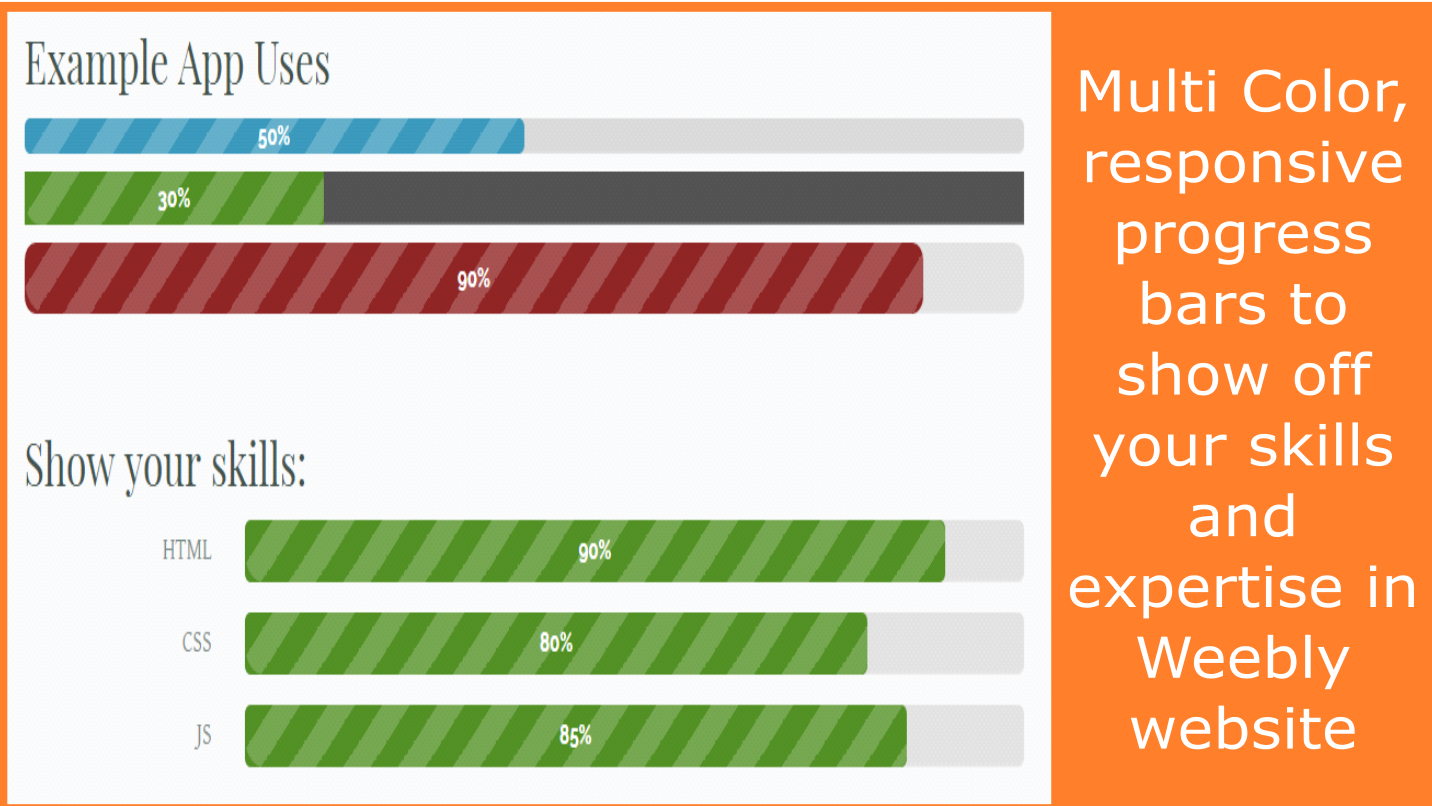
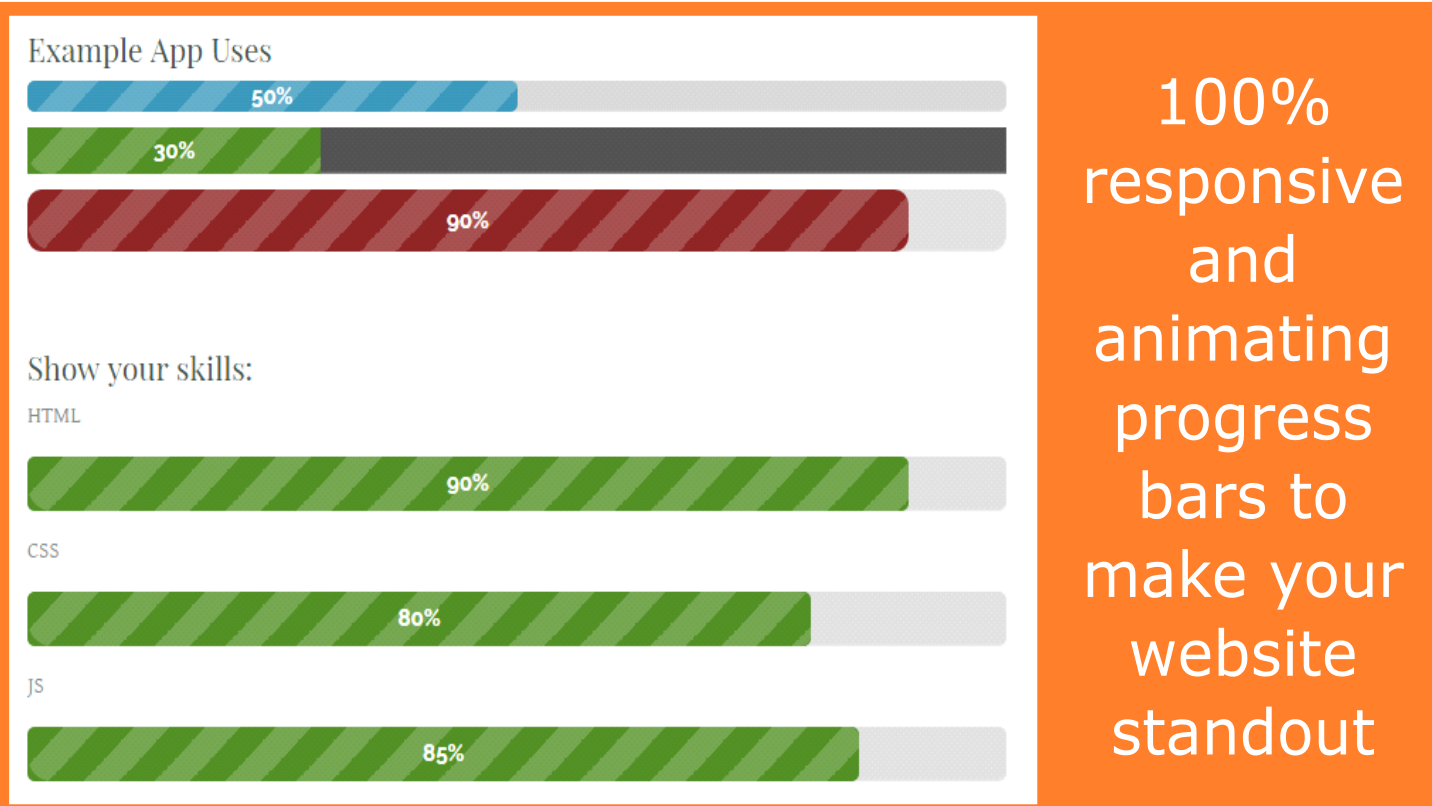
Progress bars at various percentages, colour combinations, and heights — as they appear on a live Weebly site.
Settings Panel
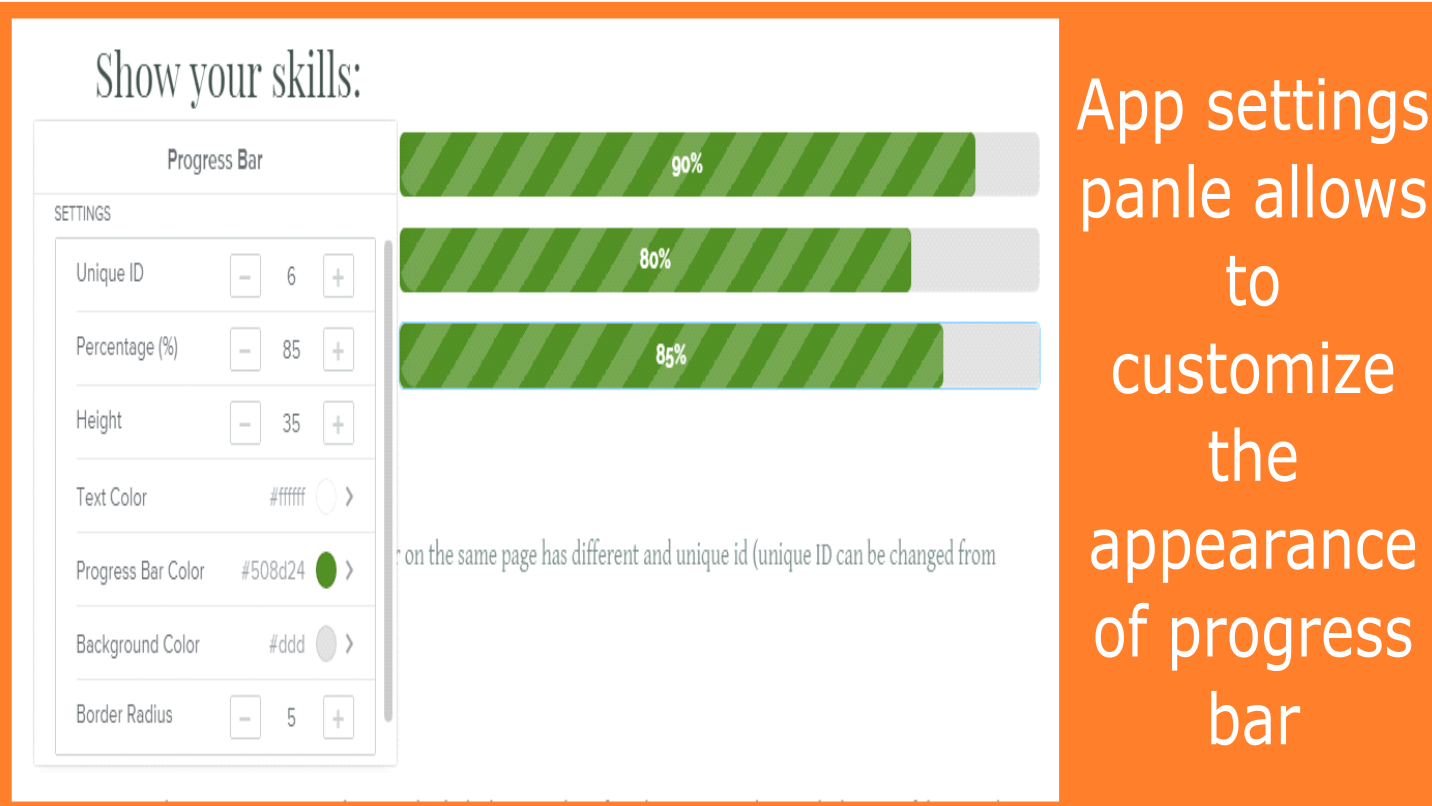
All customisation is done through the settings panel — click the widget in the Weebly editor to access these controls. Each setting adjusts independently, allowing you to style each progress bar on the page to match your design or to differentiate between multiple bars.
- Percentage — the value the bar fills to, expressed as a whole number between 0 and 100 (e.g. 75 for 75%)
- Height — thickness of the bar in pixels; taller bars are more prominent, thinner bars suit subtle skill displays
- Bar Colour — the fill colour of the completed portion of the bar; choose any colour to match your brand
- Background Colour — the colour of the unfilled portion of the bar; typically a lighter shade of the bar colour or a neutral grey
- Border Radius — rounds the ends of the bar from sharp corners (0) to fully rounded (pill shape); applies to both the bar and the background track
- ID — a unique identifier for each bar; must be different for every progress bar on the same page to prevent conflicts between multiple bar animations
⚙️ Settings Panel
- 📊 Percentage (0–100%)
- ↕️ Height (pixels)
- 🎨 Bar Colour (colour picker)
- 🔲 Background Colour (colour picker)
- ⬜ Border Radius (0 = sharp, high = pill)
- 🔑 Unique ID (required per bar)
- 📱 100% Responsive
Three Main Use Cases
The developer identifies three primary purposes the Progress Bar widget is designed to serve — all on a 0–100% scale.
🧠
Skills & Expertise
Display your proficiency in each skill as a percentage bar. A web designer’s portfolio might show HTML at 95%, CSS at 90%, JavaScript at 80%, and so on — giving visitors an immediate visual read of capability without paragraph-length descriptions.
Best for: Freelancer portfolios, CV pages, agency skill sections
✅
Task & Project Progress
Communicate project or campaign progress to clients, donors, or stakeholders with a visual completion indicator. A fundraising page showing a campaign at 68% funded, or a construction project at 40% complete, conveys status instantly without tables or written updates.
Best for: Crowdfunding pages, project status pages, milestone trackers
⚖️
Attribute Comparisons
Compare multiple attributes on a relative 100% scale — for example comparing customer satisfaction, speed, and reliability scores side by side. Each bar represents a different dimension, making multi-attribute comparisons easier to absorb than tables or bullet lists.
Best for: Product comparison pages, service quality displays, review breakdowns
Reviews
Progress Bar has not yet received any reviews on the Weebly App Center. As this is the only honest signal available, we recommend evaluating the app through the live demo site and the YouTube walkthrough above before purchasing. The FAQ below also addresses the key behaviour and limitations documented by the developer in the app’s own description.
💡 No reviews yet? This is not unusual for a focused utility app from a small developer. The same developer’s Colored Lines app holds a 4.9/5 rating across 8 reviews, suggesting a track record of functional, well-maintained apps. We recommend using the live demo and YouTube video as your primary evaluation tools — both are available before any purchase commitment.
Frequently Asked Questions
The animation has already finished by the time I scroll to the progress bars — how do I fix this?
This is a known limitation stated in the app’s own description: progress bar animation is triggered on page load, not when the element enters the viewport. This means that if your progress bars are placed below the fold — further down the page — the fill animation will have already completed before the user scrolls to see them, and visitors will see static, fully-filled bars rather than the animated fill effect. The app currently does not support scroll-triggered animation. The practical workaround is to place progress bars higher on the page — on a section visible without scrolling, or in the first screenful of content — so the animation plays at the moment the page loads while the bars are visible. The live demo shows this placement in practice.
Do progress bars animate on iPhones and in Safari?
No — the developer states explicitly in the app description that progress bars do not animate in Safari or on iPhones due to a browser-level limitation in WebKit. On Safari and iOS devices, the bars display as static (fully filled to the set percentage) rather than animating from left to right. The developer’s solution is to present them as static bars on those platforms — the percentage is still correctly displayed, just without the animation. All other modern browsers (Chrome, Firefox, Edge) receive the animated fill. If animation is central to your use case, bear this in mind before purchasing; if a static bar is acceptable as a fallback, the app still functions correctly on Safari/iPhone.
Why do I need to set a unique ID for each progress bar, and what happens if I don’t?
The developer requires that each progress bar on the same page has a different and unique ID (set in the settings panel). The ID is used internally by the animation script to identify and control each bar independently. If two or more bars share the same ID on a page, their animations can conflict — typically resulting in all bars with that ID filling to the same percentage or behaving incorrectly. The fix is straightforward: when you add a second (or third, etc.) progress bar to a page, open its settings panel and change the ID to something different from the others already on that page. Any alphanumeric value works — for example “bar-1”, “bar-2”, “bar-3”.
Why do I see stripes on the bar in some browsers but not others?
The diagonal stripe pattern inside the filled portion of the bar is generated using CSS3 styles. Older browsers that do not fully support CSS3 (primarily Internet Explorer) will not render the stripes and will instead display a clean solid-colour bar. The developer describes this as a deliberate cross-browser fallback: modern browsers show the striped animated bar, older browsers show an equivalent solid-colour bar. The percentage display and bar dimensions are unaffected. For most sites serving modern browser traffic, the striped appearance will be the standard experience.
Can I add a label or title text above each progress bar?
The Progress Bar widget itself does not include a built-in title or label field — the settings panel covers percentage, height, colour, border radius, and ID only. To display a skill name or label above or beside a bar (e.g. “JavaScript — 85%”), place a standard Weebly text element in the same row or column as the widget using Weebly’s layout tools. This gives full control over label formatting, font, and spacing independently of the bar widget.
Explore Our Other Weebly Apps
Show Your Skills. Display Your Progress. Compare Your Attributes.
The Progress Bar widget gives any Weebly page an immediate visual layer for percentage-based data — skill levels, task completion, and comparative values alike. Set the percentage, style the bar, and it animates on load. Check the live demo and YouTube walkthrough first to evaluate animation behaviour and browser compatibility, then add it to your site.