
Weebly Vertical Lines – Add Colourful Vertical Dividers Between Columns on Your Weebly Website
Add a solid coloured vertical line between Weebly columns to give your multi-column layouts a clean, structured look. Set the width, height, and colour from the settings panel — and optionally hide the line on mobile where columns stack vertically.
Custom Width, Height & Colour | Hide on Mobile Option | Works in Columns, Posts & Products | From codoplex.com
↕️ Adjustable Width & Height
🎨 Any Colour via Colour Picker
📱 Hide on Mobile Option
What Is the Weebly Vertical Lines App?
Weebly’s built-in columns element lets you place content side by side, but provides no visual separator between the columns — they simply sit adjacent with whitespace between them. The Weebly Vertical Lines app fills that gap by letting you drag a coloured vertical line widget into your page as a column element, placing it visually between two content columns to create a clean structured separation.
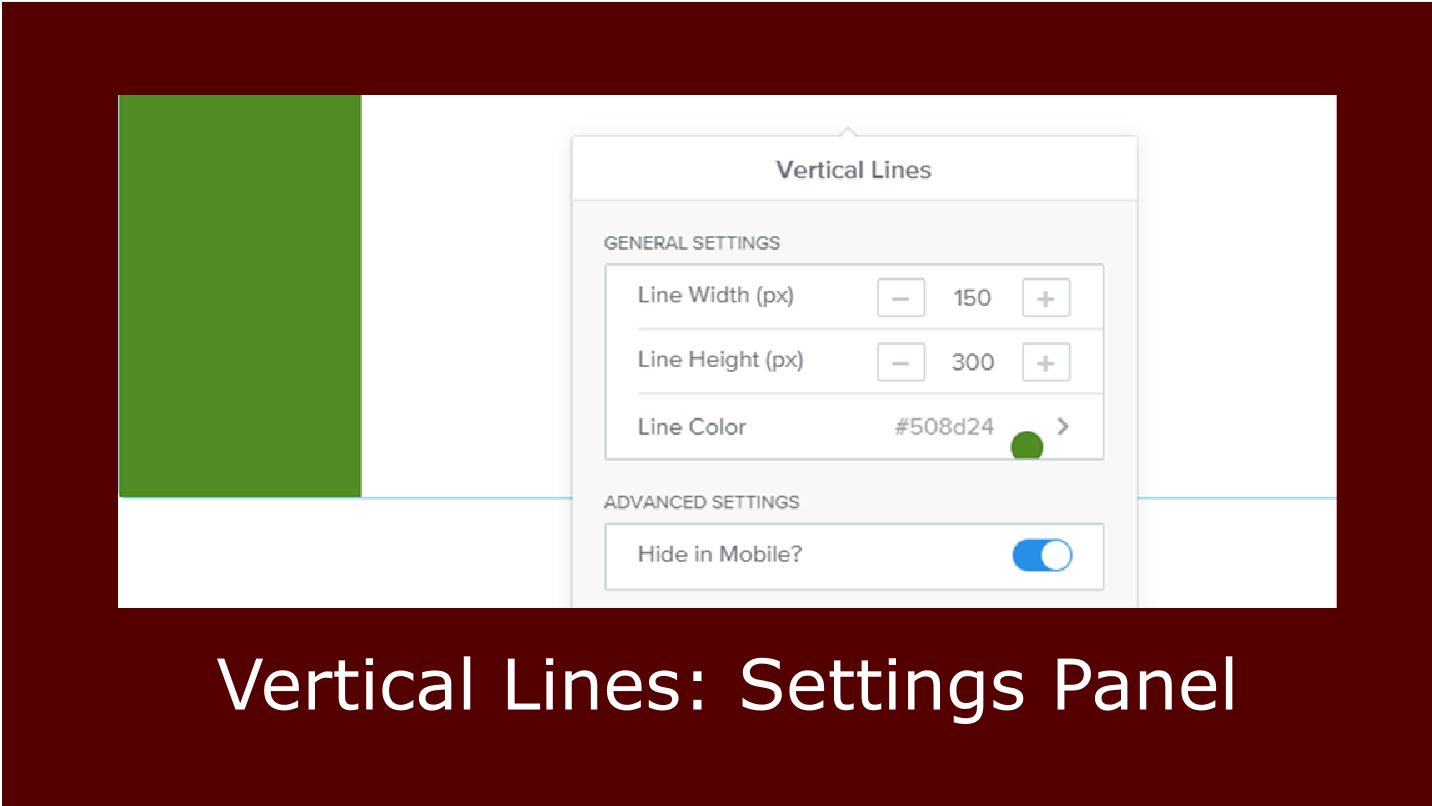
From the settings panel you control the line’s width (in pixels), height (in pixels), and colour via the colour picker. The app also includes a Hide in Mobile option: when enabled, the vertical line is automatically hidden on screens narrower than 767px — since on mobile devices Weebly columns stack vertically, a vertical divider between them would serve no purpose and could add unwanted blank space.
It can be used anywhere you use a standard Weebly drag-and-drop element — pages, blog posts, or product listings. The use case it is primarily designed for is as a column separator, where a narrow strip of colour adds visual structure to a multi-column layout without requiring any CSS or coding knowledge.
Screenshots
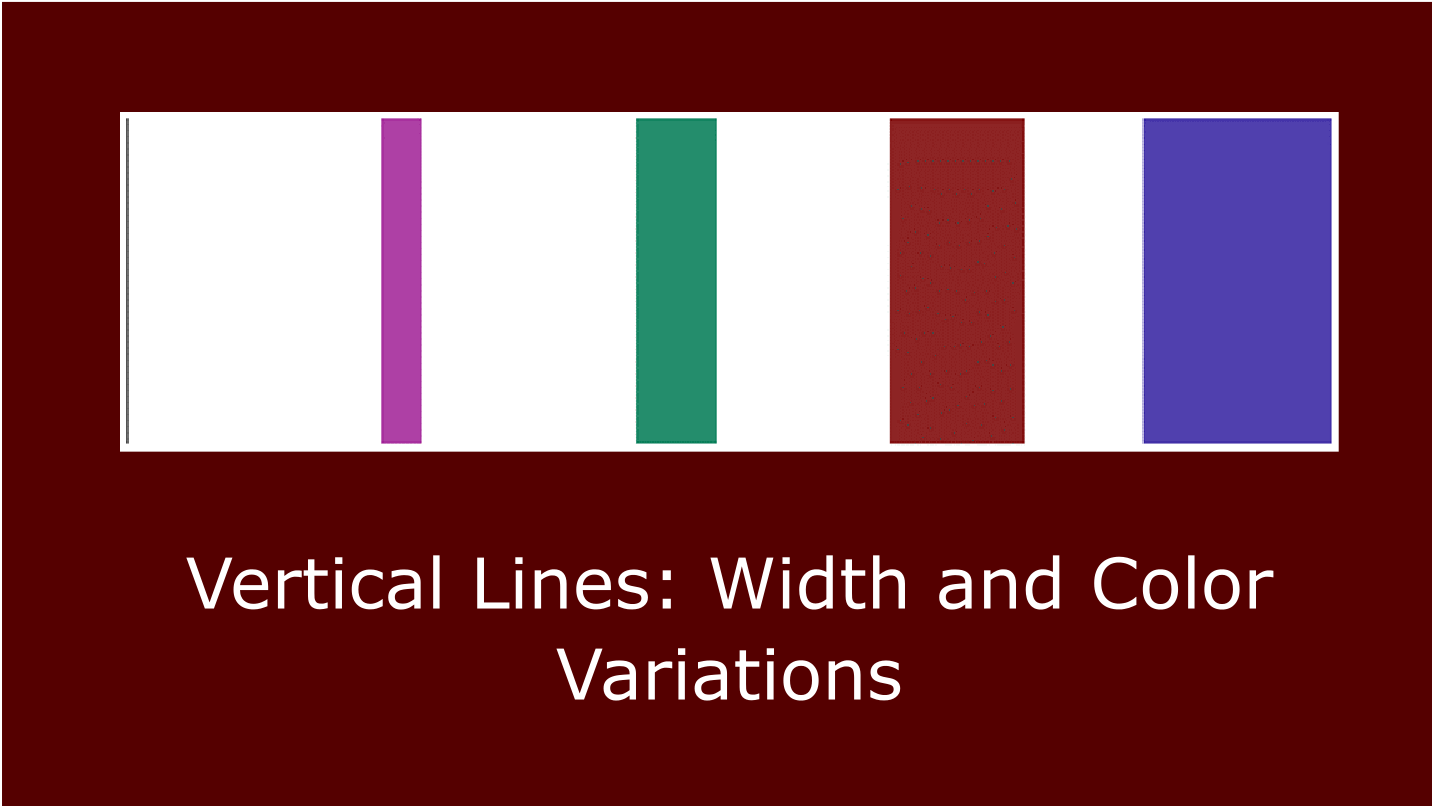
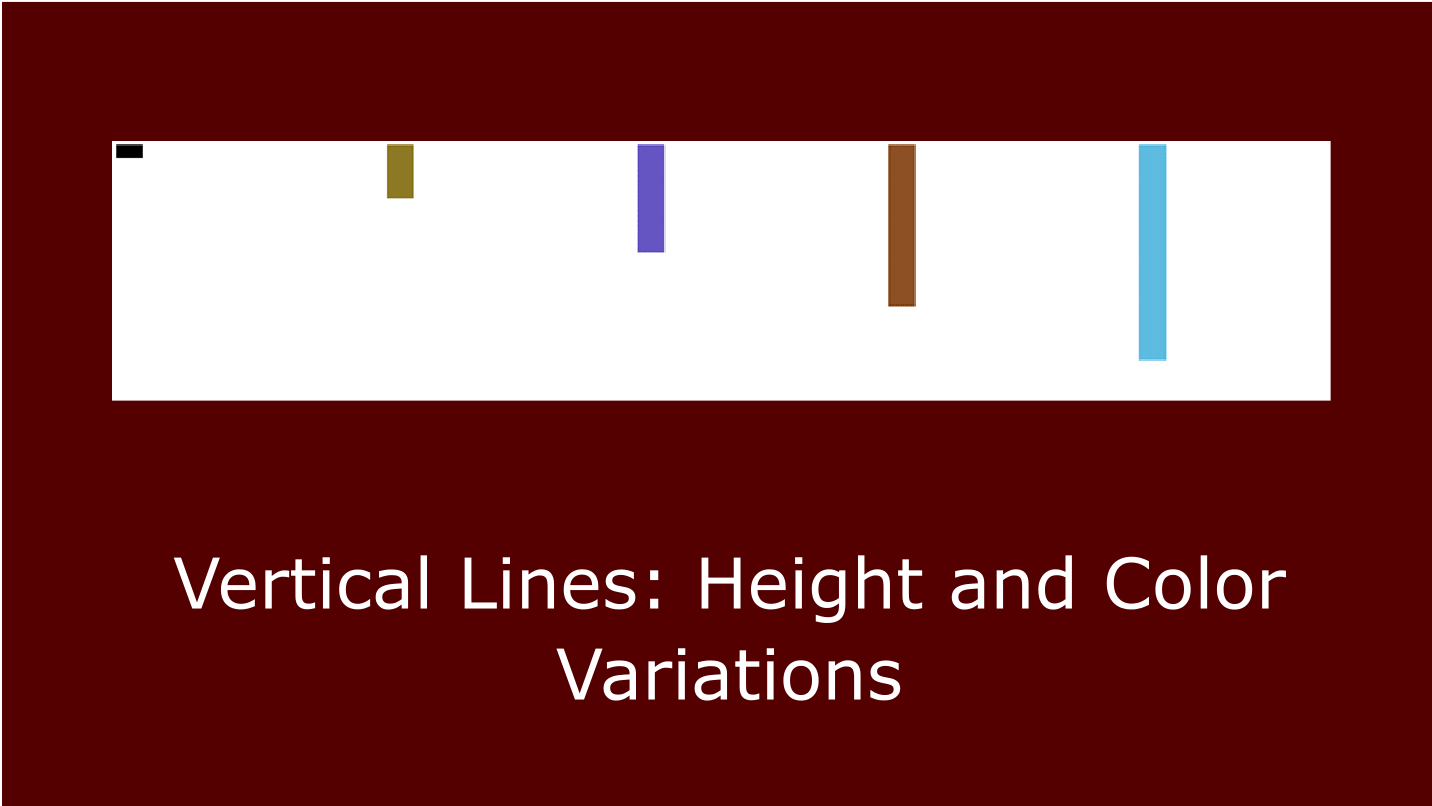
See how Vertical Lines appear between content columns at different widths, heights, and colours on a live Weebly page.
How to Place Vertical Lines Between Weebly Columns
Vertical Lines works as a column element — it occupies a narrow column slot between your content columns. Here is how the placement works in practice.
1
Create a Multi-Column Row
In the Weebly editor, add a Columns element to your page — for example a 3-column row. Place your content in the left and right columns.
2
Drag Vertical Lines Into the Middle Column
Drag the Vertical Lines widget from the Apps section into the middle (separator) column. Set that column to a narrow width — it only needs to be wide enough to accommodate the line.
3
Configure Width, Height, Colour & Mobile
Click the widget to open settings. Set the line width (px) to match your desired thickness, height (px) to span the column, choose a colour, and enable Hide in Mobile so the line disappears when columns stack on small screens.
💡 Layout tip: The app works best when the Vertical Lines widget occupies a dedicated narrow middle column between two content columns. The height setting controls how tall the line appears — set it to match the height of the content in the adjacent columns so the divider spans the full visible area. See the live demo for a working example of this column structure in action.
Settings Panel
All four settings are accessible by clicking the widget in the Weebly editor. There are no advanced or hidden controls beyond what is shown in the settings panel — the app is deliberately simple and focused on the single task of drawing a coloured vertical line.
- Width (px) — controls the thickness of the vertical line in pixels; keep this narrow (e.g. 1–5px) for a hairline divider or increase it for a thicker block-style accent
- Height (px) — controls the visible length of the line from top to bottom; set this to match the height of the content in the columns alongside the line
- Colour — set the line colour using the built-in colour picker; choose any colour to match your site’s brand or design palette
- Hide in Mobile — when enabled, the line is automatically hidden on screens narrower than 767px; since Weebly columns stack vertically on mobile, this prevents the line from appearing as a floating horizontal bar between stacked content blocks
⚙️ Settings Panel
- ↕️ Width (pixels)
- ↔️ Height (pixels)
- 🎨 Line Colour (colour picker)
- 📱 Hide in Mobile (≤ 767px)
Common Use Cases
Any multi-column Weebly layout benefits from a visual separator — especially where columns hold distinct types of content that need a clear boundary between them.
📄
Contact & Info Layouts
A thin branded vertical line between a contact form column and an address or map column gives the section a clean, structured appearance without a heavy box or background.
📊
Feature Comparison Columns
In pricing tables or feature comparison layouts, a vertical line between plan columns visually reinforces the separation between each option — making the comparison easier to read at a glance.
🦶
Footer Column Separators
Weebly footer sections typically use multiple columns for links, contact details, and logos. A subtle vertical line between each column adds structure to what can otherwise look like a flat, undifferentiated block of text.
Verified Reviews
Both verified reviews from the Weebly App Center are shown below. The app has not received enough reviews for an aggregate rating to be displayed on the listing. We recommend checking the live demo to evaluate the app before purchasing.
⭐⭐⭐⭐
“The app does what it should. I bought it because I needed a fine-line vertical divider. I designed my footer with it. I’m satisfied.”
Katja Loeffler · October 2021 · ⭐⭐⭐⭐ · (Translated from German)
⭐
“Paid $10 [and it] has limited functionality, no left or right padding, doesn’t work well with images on left or right.”
Eugene Lavatman · March 2019 · ⭐ · See FAQ for padding details
Developer response: “Your valuable suggestions will definitely be implemented in the next version release.” — As of version 1.0.0, left/right padding for the line is not yet available. The FAQ below explains the current positioning options.
Frequently Asked Questions
Does Vertical Lines support left or right padding to offset the line from the column edge?
No — the current version (1.0.0) of Vertical Lines does not include a left or right padding control for the line itself. The settings panel provides width, height, colour, and mobile visibility only. The developer acknowledged this as a limitation and indicated it would be addressed in a future version, but as of the current release it has not yet been implemented. If precise horizontal positioning of the line within its column is important for your layout, you can work around this by adjusting the width of the column that contains the Vertical Lines widget — making it narrower or wider shifts the visual position of the line relative to adjacent content columns. This does not provide pixel-level control but can achieve acceptable positioning in most layouts.
Does Vertical Lines work alongside images placed left or right of the divider?
The app places a vertical line in a Weebly column slot — it does not interact with the content of adjacent columns. However, because there is no padding control on the line, when images are placed in columns directly adjacent to the Vertical Lines widget the line may appear to sit flush against the image edge without any breathing space. The degree to which this is visually acceptable depends on your layout. If you need a gap between the image edge and the line, the only option in the current version is to widen the Vertical Lines column slightly (which creates more space on both sides) or to add padding to the image element in the adjacent column using Weebly’s image settings. Check the live demo to see the current behaviour before purchasing.
Why should I enable Hide in Mobile?
On Weebly websites, multi-column layouts collapse to a single-column stack on mobile devices (screens narrower than 767px). When columns stack vertically, a vertical line between them no longer makes visual sense — it would appear as an isolated short coloured bar between content blocks, which looks out of place. Enabling Hide in Mobile automatically removes the Vertical Lines widget from the page on mobile screens, so the stacked content flows without the orphaned divider. For almost all vertical line use cases, Hide in Mobile should be enabled.
What is the difference between Vertical Lines and Colored Lines?
Vertical Lines creates a vertical (portrait-orientation) line for use between columns. It is a focused app with four settings — width, height, colour, and mobile visibility. Colored Lines creates a horizontal (landscape-orientation) line divider for use between page sections, and includes significantly more customisation: gradient effects (two colours, three directions), glow effects, seven decorative ornament styles, border radius, alignment, and margin/padding controls. If you need horizontal section dividers with advanced visual styling, Colored Lines is the more capable app. If you need a simple vertical column separator, Vertical Lines is the dedicated solution for that purpose.
Explore Our Other Weebly Apps
Give Your Weebly Column Layouts the Visual Structure They’re Missing.
Weebly’s default column element gives you no visual divider between columns. Vertical Lines fills that gap with a simple, focused widget: set the width, height, and colour, enable Hide in Mobile, and your column separator is done. Check the live demo first, then add it to your Weebly site.