
Weebly Image Text – Add a Transparent Coloured Text Overlay to Any Image on Your Weebly Website
Place a colourful, semi-transparent text band directly over your Weebly image — at the top or bottom — and describe it without taking up any extra page space. Set the overlay colour, adjust the opacity for the right balance of readability and image visibility, and let the widget handle everything else.
Transparent Text Overlays | Top or Bottom Position | Adjustable Opacity | 100% Responsive | From codoplex.com
✅ Transparent Colour Overlay
✅ Top or Bottom Placement
✅ 100% Responsive Layout
What Is the Weebly Image Text App?
When you display an image on a Weebly website, any descriptive text typically sits below it — outside the image, consuming extra vertical space and separating the label from what it describes. The Weebly Image Text app solves this by placing a coloured, semi-transparent overlay band directly on top of your image, so your text description lives with the image rather than beneath it.
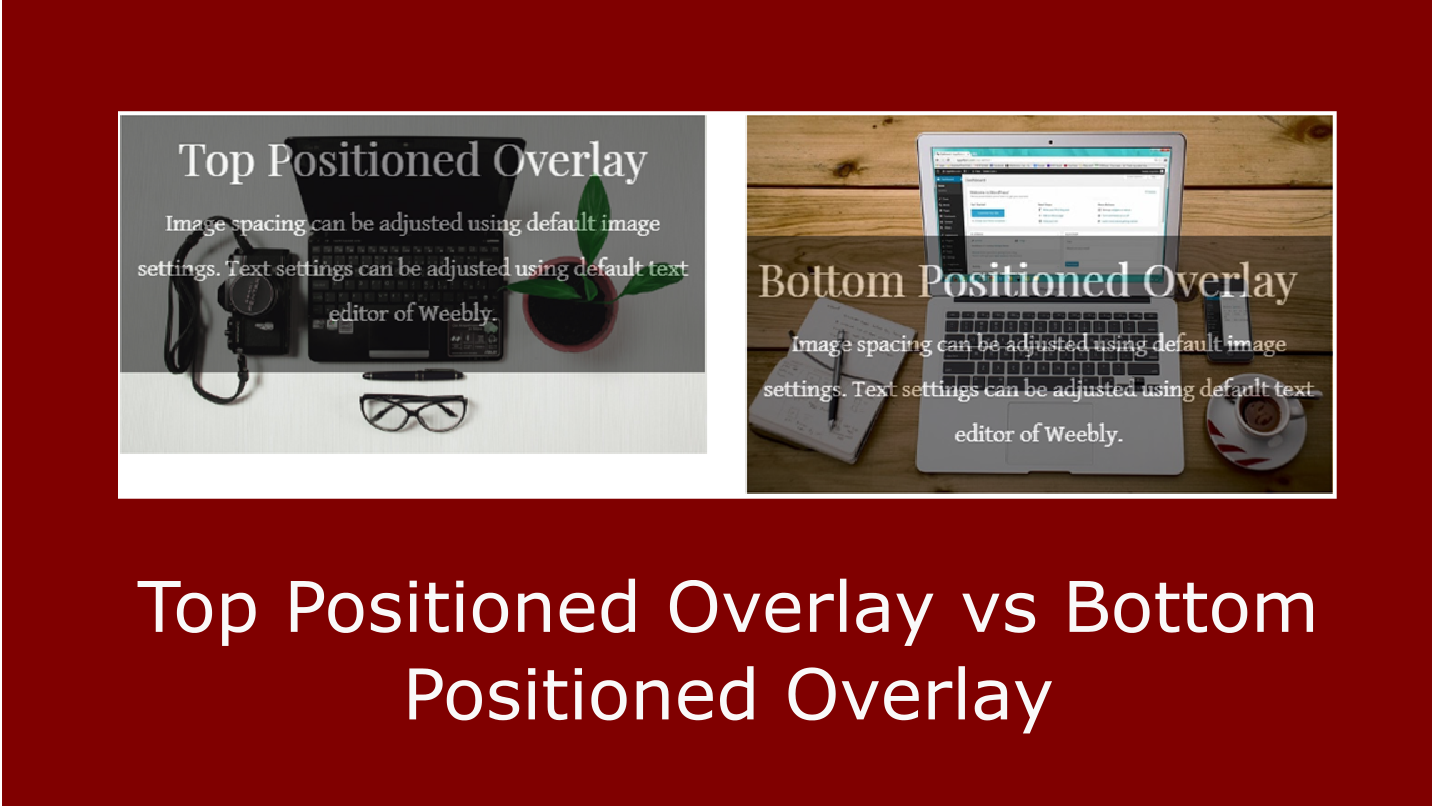
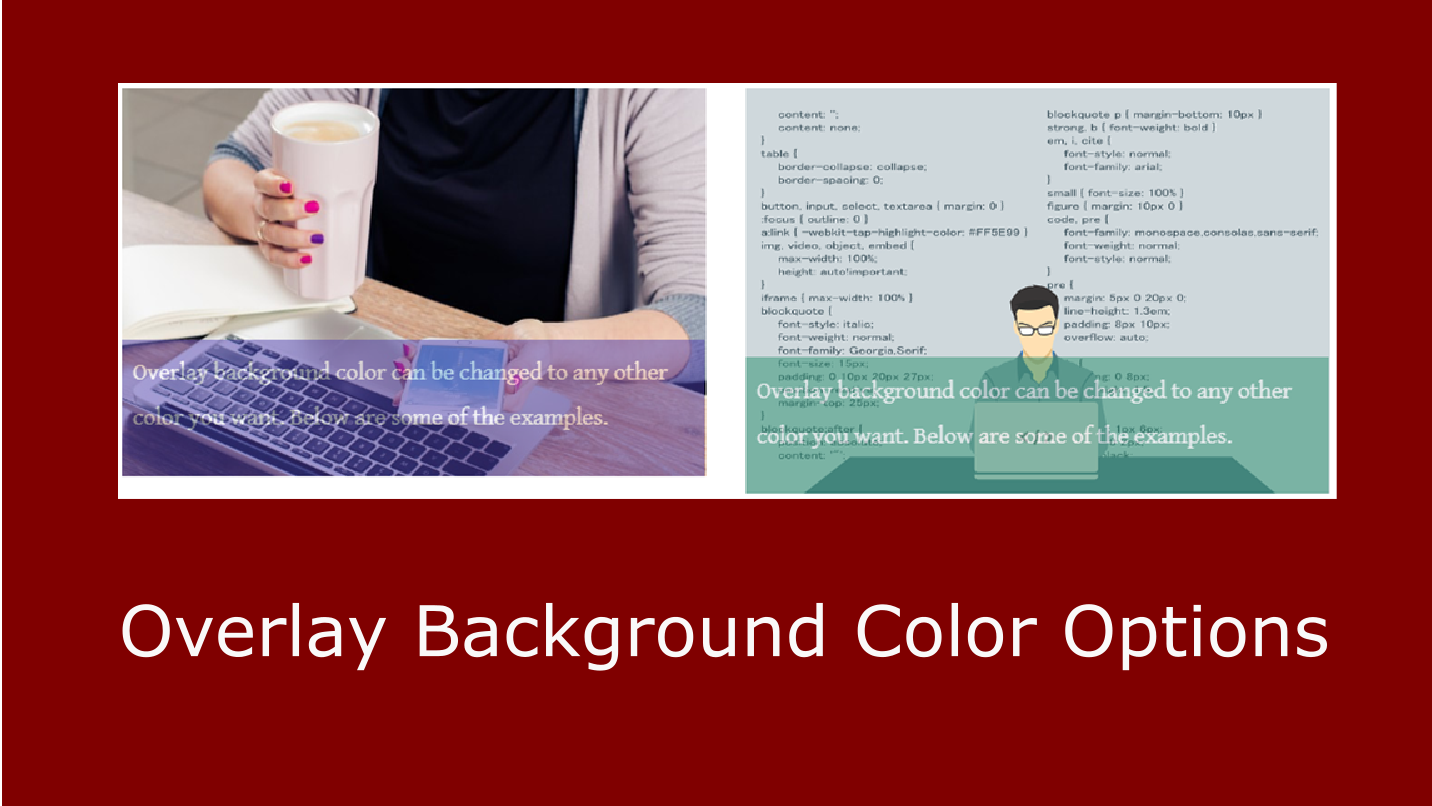
You choose the overlay colour from any colour in the picker, then adjust the opacity slider to control how transparent or opaque the band appears — letting more or less of the underlying image show through. The overlay can be placed at the top or bottom of the image, and the content area inside the overlay is drag-and-drop enabled for text elements.
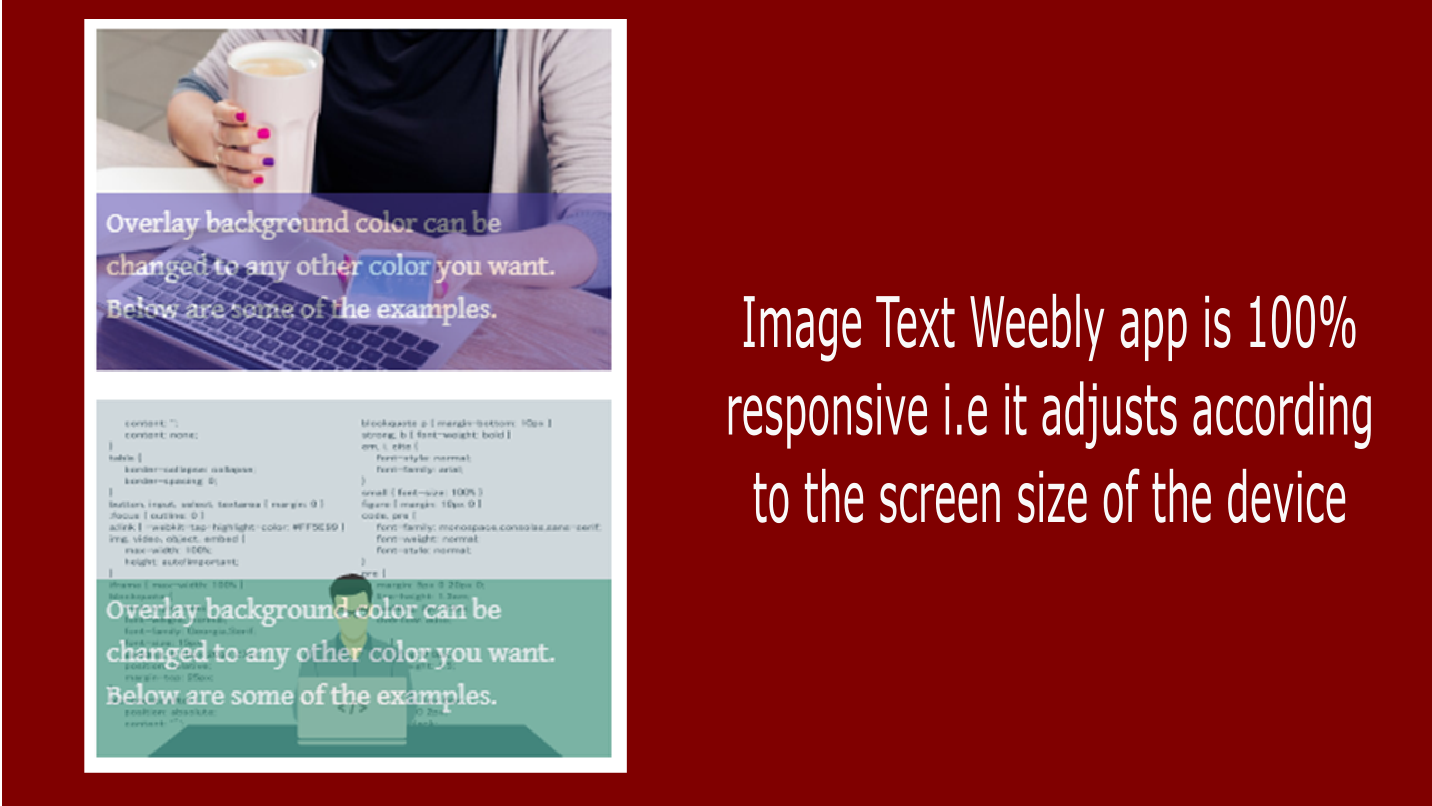
The app is fully responsive, automatically adjusting the overlay to the screen size of the device. If your text content exceeds the image height, the app clips the overflowing text rather than expanding past the image boundary — so concise captions work best.

Screenshots
See Image Text in action across different overlay colours, opacity levels, and image layouts.
Who Uses Image Text?
Any Weebly site where images need concise, visually integrated captions — without stacking text outside the image frame.
🏘️
Real Estate & Property Listings
Agents can label property photos with the address, price, or status (e.g. “Just Listed”) directly on the image rather than in a text block below — keeping the listing compact and the label visually connected to the photo.
🍽️
Restaurants & Cafés
Display dish photos with a branded colour overlay at the bottom showing the dish name and price — creating a visual menu style that’s clean, consistent, and works on mobile without any extra layout work.
📸
Galleries & Portfolios
Photographers and designers can subtitle each portfolio image with a project name or category using a minimal, brand-coloured overlay — avoiding the visual clutter of separate text blocks beneath every photograph.
What’s in the Settings Panel
After dragging the Image Text widget onto a Weebly page element, click it to open the settings panel. Every overlay behaviour is controlled here:
- Overlay Background Color — choose any colour using the colour picker to set the fill of the text overlay band
- Overlay Opacity — adjust the transparency of the background colour so the underlying image shows through at the level you want; lower opacity reveals more of the image, higher opacity makes the text stand out more clearly
- Overlay Position — choose Top (the overlay band appears at the top of the image) or Bottom (default, overlay appears at the bottom of the image)
- Drag-and-Drop Text Area — the overlay area accepts Weebly text elements; type your caption, title, or description directly inside; text elements only are recommended — other element types may not display correctly
- Automatic Text Clipping — if your text runs longer than the image height, the overflow is automatically clipped rather than extending outside the image frame; plan for concise captions
⚙️ Settings Panel
- 🎨 Overlay Background Color
- 🔆 Overlay Opacity (adjustable)
- ⬆️⬇️ Position: Top or Bottom
- 📝 Text-only Drag-and-Drop Area
- ✂️ Automatic Text Clipping
How to Set Up Image Text in 5 Steps
Visit the demo site to see the finished result before you begin.
1
Install the App
Go to the Weebly App Center, find Image Text by Junaid Hassan, and click Add. The app is added to your Weebly editor’s element panel.
2
Drag Widget to the Page
In the Weebly editor, drag the Image Text widget from the Apps section onto the page area where you want your captioned image to appear.
3
Upload Your Image
Click the widget and upload the image you want to display. This is the base image over which the transparent text overlay will appear.
4
Configure the Overlay
Open the settings panel. Set the overlay colour and opacity. Choose Top or Bottom position. Add your text into the drag-and-drop overlay area — keep it concise so it fits within the image height.
5
Publish & Preview
Publish your site and view it in a browser to see the captioned image. The overlay is only visible on the published site, not in the Weebly editor preview.
Verified Reviews
All 3 verified reviews from the Weebly App Center are shown below. The developer responded to each and released an updated version addressing the earliest concerns — particularly the opacity control that now makes text clearly readable over the overlay. We recommend checking the live demo to evaluate the current version of the app before purchasing.
⭐
“The text appears ‘behind’ the overlay area and gets dimmed. Looks really unprofessional.”
Oliver Thomson · September 2018
Developer response: “We have released a new version. Now you can control the transparency of the overlay area by adjusting the opacity, which will make the text more clear.” — This issue was fixed in a subsequent update.
⭐
“Does not display as the sales page said, and nowhere does it give you instructions about how to use the app. The only drag and drop that works is adding the app, but will not add the feature to individual images like the listing said.”
Antique Doorknobs · December 2019
Developer response: “Can you please send the details to the provided support email? So that we can better help you.” — See the FAQ below for how the widget is designed to be used with images.
⭐
“They do not offer a free trial so don’t bother.”
Verified Buyer · January 2019
Developer response: “Currently we do not have the functionality to offer free trials.” — A live demo site is available at 230128084786933403.weebly.com to evaluate the app before buying.
Frequently Asked Questions
The text in my overlay appears dim or hard to read — what’s wrong?
This was a known issue in earlier versions of the app, where text appeared behind the overlay colour rather than in front of it. The developer released an updated version that fixed this by adding an opacity control to the settings panel. If your text looks dim or washed out, check the settings panel and reduce the overlay opacity — a lower opacity means the background colour is lighter/more transparent, making your text stand out more clearly against the image beneath. If you are still experiencing problems with a recent version of the app, contact the developer at codoplex.com/contact.
The widget doesn’t seem to apply the overlay to individual images — how does it work?
Image Text is a self-contained widget, not a modifier you apply to existing Weebly image elements. It is not designed to wrap around or attach to images you have already placed on your page. Instead, you drag the Image Text widget from the Apps section onto your page as a new element, and then upload your image directly inside the widget itself. Each captioned image on your page needs its own separate Image Text widget dragged into position. If you tried to drag the widget onto an existing image, this is why it did not behave as expected.
Can I add other elements — buttons, icons, or images — inside the overlay area?
The overlay area is technically drag-and-drop enabled and will accept various Weebly elements, but the developer explicitly states in the app description that only text elements are recommended for the overlay area. Adding buttons, icons, images, or other Weebly components may produce unexpected results that the app is not designed or tested to support. For reliable results, place only text blocks or headings in the overlay content area.
What happens if my text description is too long?
If your overlay text is longer than the image height, the app clips the overflowing text at the image boundary. The text is not scrollable and does not expand the widget — it simply stops at the bottom of the image. This is by design, as the overlay is intended for short captions or titles that sit within the image frame. Write concise, brief descriptions and test at different screen sizes to make sure your text fits, since responsive resizing can affect how much vertical space the overlay occupies.
Is a free trial available?
Yes — Image Text does offer a free trial period. Before purchasing, the developer provides a live demo site that shows the app working with real images so you can evaluate the overlay appearance, opacity effect, and text positioning. Review the demo carefully and check the App Center listing to make sure the app’s documented feature set meets your needs before committing.
Explore Our Other Weebly Apps
Ready to Put Text Inside Your Weebly Images?
Stop placing text blocks beneath your images. The Weebly Image Text app lets you set colour, opacity, and position — and put your caption exactly where it belongs: on the image itself. Check the live demo first, then add it to your Weebly site.