
Weebly Post Columns – Turn Your Blog Posts into a 2 or 3 Column Layout
Stop displaying your Weebly blog posts in a single long column. Post Columns converts your blog into a clean 2 or 3 column grid — with optional card styling, custom colors, and responsive mobile layout — all without touching a line of code.
⭐⭐⭐⭐⭐ 4 verified reviews | 2 & 3 Column Layouts | Mobile Responsive | From codoplex.com
✅ 1, 2 & 3 Column Layouts
✅ Card Style with Custom Colors
✅ Auto Single Column on Mobile
What Is the Weebly Post Columns App?
By default, Weebly displays blog posts in a single column — one post below the next. If you publish frequently, this creates a very long page that requires excessive scrolling and makes it harder for readers to scan and discover your content. The Weebly Post Columns app solves this by converting your blog post listing into a clean 2 or 3 column grid layout, letting you show significantly more posts in the same screen space.
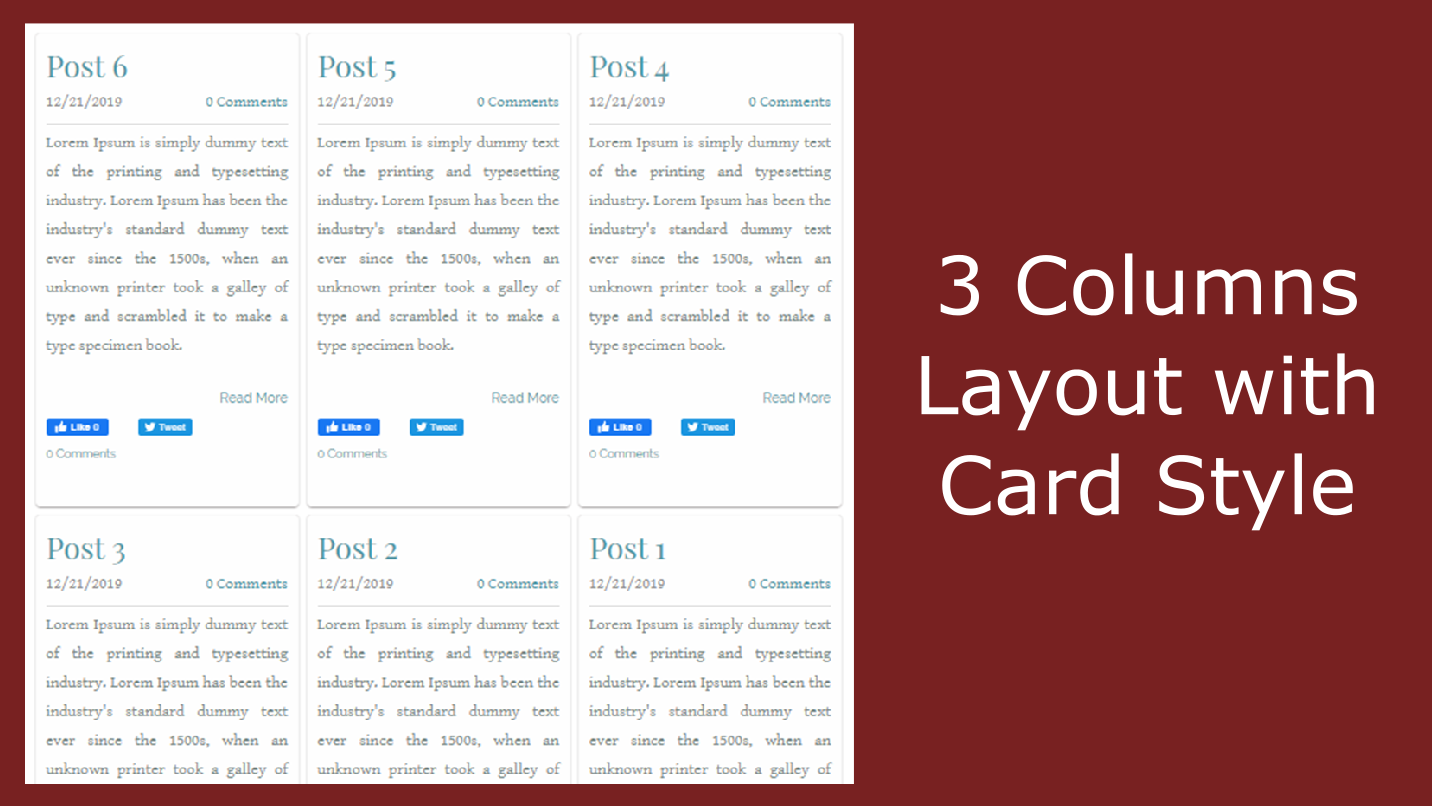
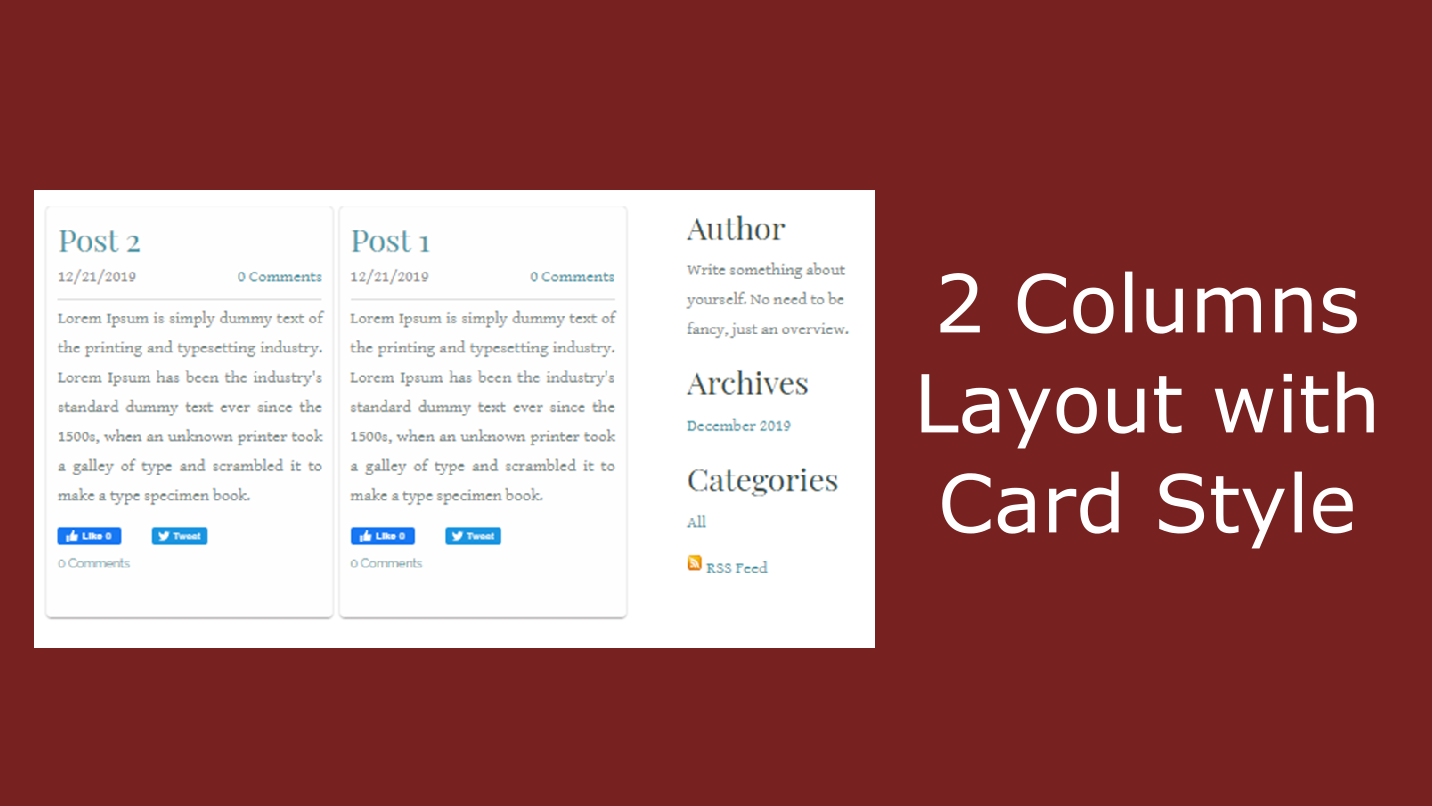
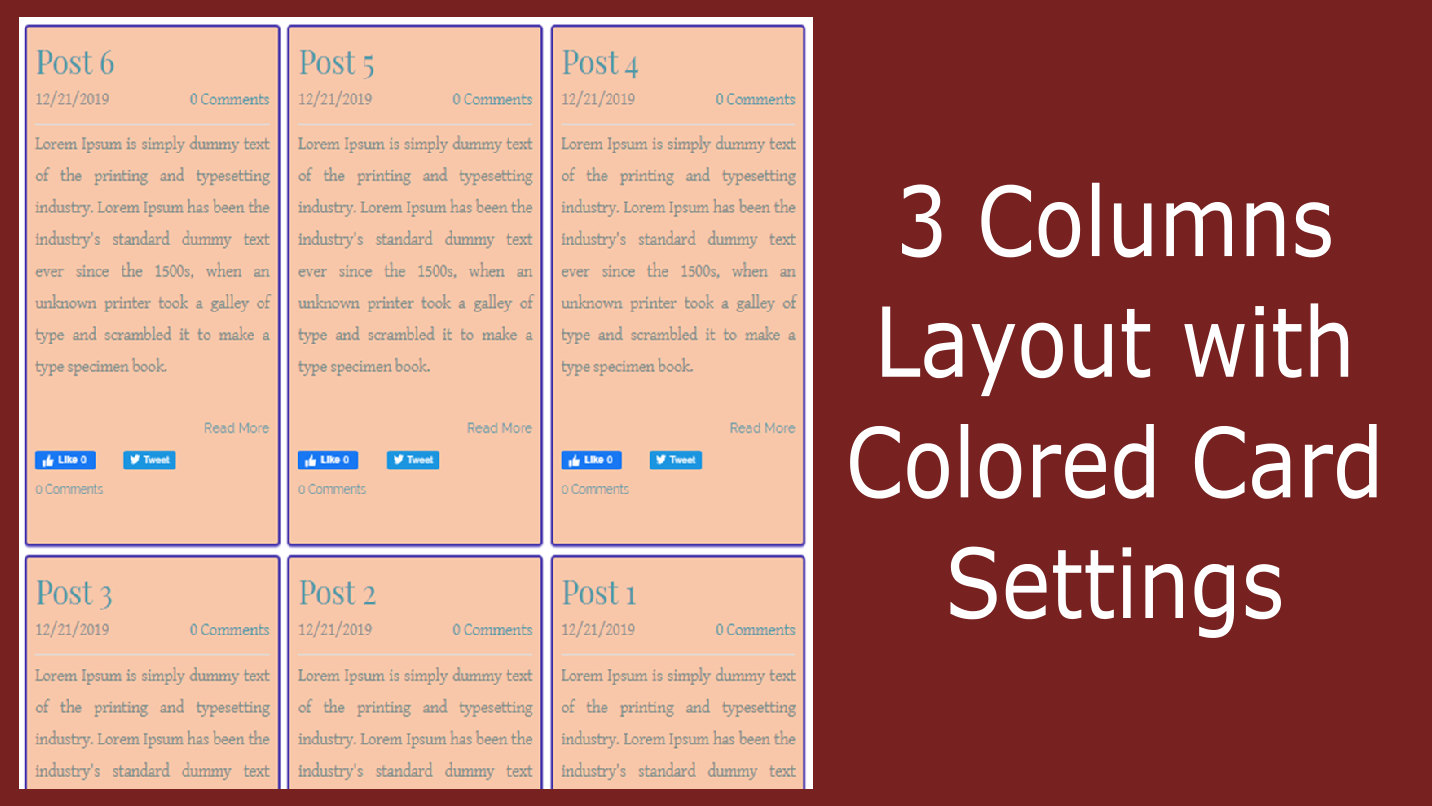
You can keep the default Weebly blog post appearance, or switch to a styled card mode where each post gets a custom background color, border, and shadow — transforming your blog listing into a polished card-based layout. A configurable gap between posts gives you precise control over spacing.
On mobile devices, the multi-column layout automatically collapses to a single column — so your blog always looks great on every screen size without any additional configuration.
Screenshots
See Post Columns in action — from the default layout to fully styled card mode.
Who Is Post Columns For?
Any Weebly site owner who publishes a blog and wants a better, more visual way to display posts.
✍️
Active Bloggers
If you publish regularly, a multi-column layout lets readers see more posts without scrolling. More content is visible above the fold, increasing the likelihood they’ll click through to read something.
🧑💼
Small Business Owners
Businesses that use a Weebly blog for news, tips, or case studies can present content in a clean card grid that looks professional and magazine-like — elevating the perception of their brand.
🎨
Design-Conscious Site Owners
If the default Weebly blog layout feels plain or repetitive, Post Columns lets you apply branded card colors, custom borders, and controlled spacing to create a visual identity that matches your site’s design.
Everything in the Settings Panel
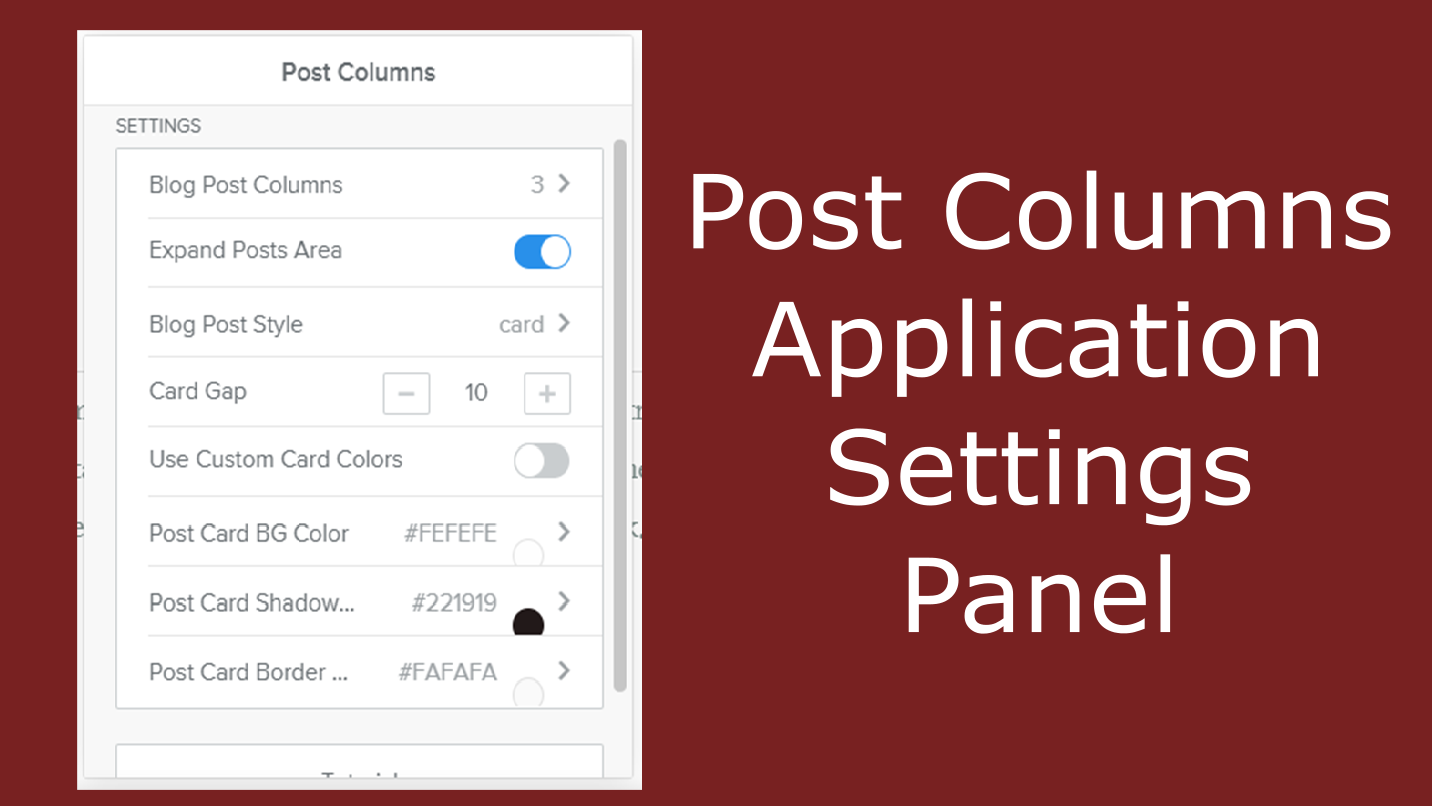
Once you drag the Post Columns widget into your blog’s sidebar area, a settings panel controls every aspect of the layout:
- Number of Columns — choose 1, 2, or 3 columns for the blog post grid
- Blog Post Style — keep the default Weebly style, or switch to styled card mode
- Card Background Color — set a custom fill color behind each post card
- Card Border Color — add a visible border in any color to define each card’s edge
- Card Shadow Color — apply a drop shadow to give cards depth and lift
- Card Gap — control the pixel spacing between post cards in the grid
Important: The multi-column layout is only visible on your live published website — not inside the Weebly editor. Always publish first to preview your changes. See the FAQ below for full details on this behaviour and how to place the widget correctly.
⚙️ Settings Panel
- 🔢 Number of Columns (1 / 2 / 3)
- 🃏 Blog Post Style (Default / Card)
- 🎨 Card Background Color
- 🖼️ Card Border Color
- 💫 Card Shadow Color
- ↔️ Card Gap (spacing)
How to Add Post Columns to Your Weebly Blog
From install to a live multi-column blog in five steps. Visit the live demo site to see the finished result before you start.
01
Install the App
Add Post Columns from the Weebly App Center. A new Post Columns drag-and-drop element will appear in your Weebly editor’s elements panel.
02
Open Your Blog Page
In the Weebly editor, navigate to your blog page using the Pages panel. The blog page is where your posts are listed — this is where Post Columns will apply its layout.
03
Drag into Blog Sidebar
Drag the Post Columns element into the blog sidebar area on your blog page — not the main page content area. Placing it in the sidebar is how the widget connects to and controls your blog post layout.
04
Configure the Settings
Click the Post Columns widget to open its settings. Choose your column count (2 or 3), enable card style if desired, set card background, border and shadow colors, and adjust the gap between posts.
05
Publish & View Live
Publish your Weebly site, then visit your live blog page in a browser. Your posts will now appear in the column layout you configured. The multi-column view is not visible inside the Weebly editor — only on the published site.
What Weebly Users Say About Post Columns
4 verified reviews on the Weebly App Center — all 5 stars
⭐⭐⭐⭐⭐
“Really love the app. Easy to use even for a beginner blogger like me. Very helpful support when I did have a question. Recommended!”
Jo Jo · July 2023
⭐⭐⭐⭐⭐
“Great customer service, responded to my queries within a few minutes. I am happy that this works due to support that the developer provided!”
Tushar Chawla · August 2022
⭐⭐⭐⭐⭐
“Great app, and amazing customer service. Helped me straight away to get it working in the theme I was using.”
Josephine Griffiths · July 2021
Frequently Asked Questions
Why can’t I see the multi-column layout in the Weebly editor?
This is by design. The multi-column layout is applied via a script that runs on your live published website — it is not active inside the Weebly editor preview. After configuring your settings, click Publish, then open your live blog page in a browser. You will see the column layout applied there. Any further settings changes also require a re-publish to take effect on the live site.
Where exactly do I drag the Post Columns widget — why the sidebar?
Post Columns works by connecting its settings to your blog’s post listing via the blog sidebar — a special widget area on Weebly blog pages that communicates with the blog output. You must drag the element into the sidebar area, not into the main page content area. If you place it in the wrong area, the settings will not apply to your posts. On your blog page in the editor, look for the sidebar column alongside the main content area — that is where the widget belongs.
How does the layout look on mobile?
Post Columns is fully responsive. On mobile devices, regardless of which column count you select in the settings, the blog posts automatically revert to a single-column layout. This ensures your blog remains readable and properly formatted on phones and small screens without any additional configuration on your part.
What is the difference between the default style and card style?
The default style keeps your blog posts looking exactly as Weebly normally renders them — no additional visual treatment is added, just the column layout. The card style wraps each post in a styled container that you can fully customise: set a background fill color, a visible border, a drop shadow, and the gap between cards. Card style is ideal when you want a more visual, magazine-like appearance or need post cards to stand out clearly from the page background.
Does Post Columns work with all Weebly themes?
Yes — Post Columns is designed to work across Weebly themes, both old and new. Results may vary slightly depending on how a particular theme styles its blog sidebar and post listing area. The developer offers responsive support to help with any theme-specific adjustments, as noted by several reviewers who received assistance quickly after installation.
Explore Our Other Weebly Apps
Ready to Give Your Weebly Blog a Better Layout?
Stop making your readers scroll through an endless single column. With Post Columns, your Weebly blog posts display in a clean, professional grid that shows more content, looks better, and keeps visitors engaged.